
Create viral videos
with AI
No camera, no cast, no shoot. Describe each scene, let AI generate the shots, and cut them together on one timeline into a video ready to post.
- Veo 3.1
- Kling 3.0 Pro
- Seedance 2.5
- Hailuo 3
- Wan 3.0
- FLUX.3 Video
- Grok Imagine 1.5
One prompt box, not a tab per app
Comparing AI video apps used to mean three accounts, three downloads and an import. Now it's one prompt box beside your timeline.
Across separate AI video apps
- Open a new account for every AI video app you want to try
- Paste the same prompt into each app to see which one nails it
- Download each take, then import it into your editor by hand
- Re-generate and re-import when one shot in the cut looks wrong
In Vidwip
- Pick from 16 video generators in one picker, on one account
- Run the prompt again on another generator and compare takes on one timeline
- The shot drops into your edit, sound included, with nothing to import
- Select the clip, choose Create, and the new take replaces it in place
From prompt to shot on your timeline
Write the shot, choose the generator that fits it, and generate. One shot per run, straight onto your timeline.
Write the shot
Describe the subject, the action and the camera in up to 1,500 characters. Your words are read as written, so you stay the director.
Pick a generator and a length
Choose 1 of 16 video generators, then a length and aspect ratio it makes. The picker says what each one is good at and if it makes sound.
Cut it into your edit
The shot drops in after your last clip with its sound. Trim it, or select it and choose Create to swap in a new take.
Direct every shot, take by take
Lengths, aspect ratios and sound differ by generator. Duration and Aspect ratio only offer what the one you picked can make.
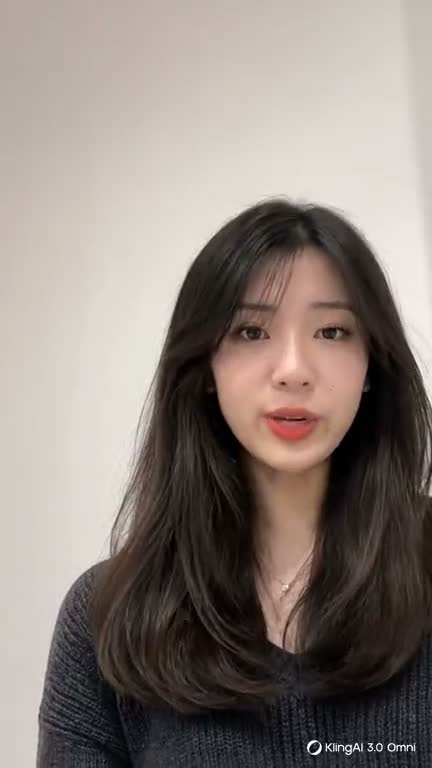
Reshoot one shot, keep the cut
Select a clip, choose Create and write a new prompt. The take comes from your prompt and any frames you add, not the old footage, and lands in the clip's spot and track, so the rest of your edit doesn't move.
- The clips either side stay where they are
- Add start and end frames to steer the take
- Pick the length and aspect ratio per shot
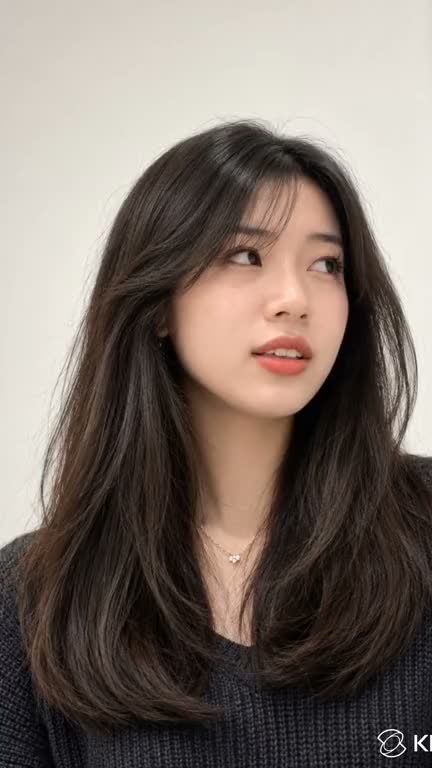
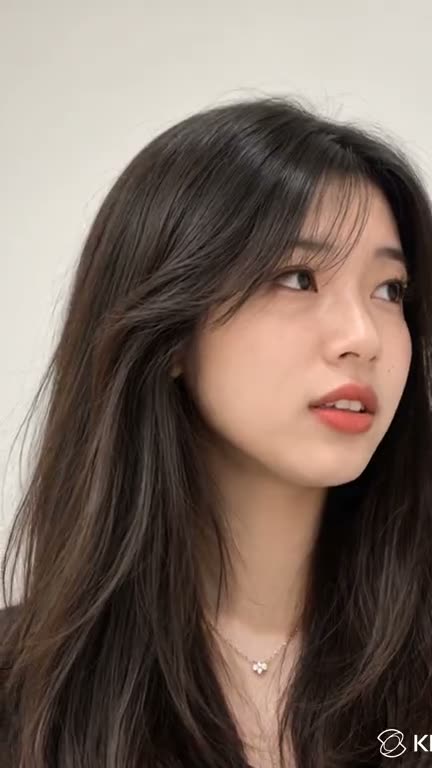
Bring a still to life
Select an image on your timeline and choose Create video. The still becomes the start frame and the shot takes its place, so a product photo or a portrait turns into moving footage inside your edit.
- Upload a still, or make one in the Image drawer
- Write how it should move, then pick a length
- Every generator accepts a start frame
The right generator for every shot
Search 16 video generators by name or description, then filter by Realistic, Sound, Start & end frames, References or Fast. Each row lists its lengths and inputs, so you choose by what the shot needs.
From quick cutaways to long takes
Make anything from a 1-second beat to a 30-second take. Duration lists only the lengths the generator you picked can make, so you never ask for a shot it can't deliver.
Shots that arrive with their own sound
14 of the 16 generators make sound with the picture, in the same shot, and one promises lip-synced speech. You skip the hunt for stock audio, and the picker says which two are silent.
Your product and character, shot after shot
Set start and end frames on 12 of the 16, or give a generator up to 30 reference images plus video and sound. Each shot starts, ends or looks the way you show it; a shot uses frames or references, not both.
16 video models from 7 vendors, one picker
Each model has its own lengths, aspect ratios and sound. Pick per shot: Veo 3.1 for speech, Hailuo 2.3 for physics, Seedance 2.5 for long takes.
- Veo 3.1Google
- Veo 3.1 FastGoogle
- Veo 3.1 LiteGoogle
- Kling 3.0 ProKling
- Kling 3.0 StandardKling
- Kling O1Kling
- Seedance 2.5ByteDance
- Seedance 2.0ByteDance
- Seedance 2.0 FastByteDance
- Hailuo 3MiniMax
- Hailuo 3 MaxMiniMax
- Hailuo 2.3MiniMax
- Wan 3.0Alibaba
- FLUX.3 VideoBlack Forest Labs
- Grok Imagine 1.5SpaceXAI
- Grok Imagine 1.5 LiteSpaceXAI
Resolution is fixed by each model, from 720p to 2K. Edits export from AI Studio at up to 1080p, and a shot can be downloaded as its own MP4.
For the shot you can't film
Generate the opener, the b-roll or the product moment, then cut it in beside your own footage.
Short-form creators
Make 9:16 shots for Reels, TikTok and Shorts. 15 of the 16 generators make vertical, and shots start in your project's ratio.
Ad creative teams
Generate the hook shot for an ad on one generator, then run the same prompt on another and keep the stronger take.
Ecommerce brands
Add a product photo from the Image drawer, choose Create video, and set it moving with the photo as the first frame.
Channels that need b-roll
Fill the gaps between talking heads: a 2 s cutaway, or a 30 s establishing take.
Directors and storyboarders
Test a prompt as quick silent drafts on a fast generator, then run the prompt that works at 1080p.
Course creators
Generate a short opener or b-roll beat for each lesson, or set a still from your slides moving with Create video.
Before you generate your first shot
Models, lengths, sound, image to video, re-shoots, and the limits of AI video generation in Vidwip today.
What is an AI video generator?
Which AI video models can I use?
How long can a shot be, and in which aspect ratios?
Can I turn an image into a video with AI?
Does the generated video come with sound?
Can I replace a clip I don't like?
Where does AI video generation stop today?
Can I choose a voice or language for the speech?
Is it free to start?
Write the shot. Get the take.
One prompt box, 16 generators, every shot on your timeline. Free to start.