
Google AI Studio is the only genuinely free tool here that reads video frames and audio together, which is what silent screen recordings need. Gemini Notebook handles the longest material but only reads transcripts. TurboScribe is the pick for multi-speaker audio. ScreenApp has the best OCR and the harshest free plan — its standing free tier does not allow uploads at all.
TL;DR — the ranking at a glance
Most free AI video reader tools only read the audio. That is the single fact that decides which of these six is right for you, because a silent screen recording, a slide deck on video, or a UI walkthrough with no narration returns an empty transcript from a tool that never looks at the pixels.
Ranked on the three things that actually break: on-screen text, long recordings, and multi-speaker audio.
| # | Tool | Best at | The free ceiling |
|---|---|---|---|
| 1 | Google AI Studio | Reading frames and audio together | Free API tier · 8 hrs of YouTube/day |
| 2 | Gemini Notebook | Long recordings with checkable citations | 50 sources/notebook · 50 chats/day |
| 3 | TurboScribe | Multi-speaker audio | 3 files/day · 30 min each |
| 4 | ScreenApp | On-screen text (OCR) with timestamps | 7-day trial · no upload on free |
| 5 | Memories.ai | Searching across many videos | 100 credits/month |
| 6 | NoteGPT | A fast read on one YouTube link | Free tier exists; no allowance published |
All pricing and limits checked September 2026.
What a free AI video reader actually reads
An AI video reader converts video into text you can search, quote, or question. Where they differ is which channel they read.
Audio-only readers transcribe speech and work from that transcript. Fast, cheap, and useless on a silent capture.
Frame readers sample the video as images and describe what they see — the button someone clicked, the number on the dashboard, the error in the console.
OCR readers do one narrow job well: pull literal text off the frames and hand it back with timestamps.
The best free tools do two of the three. None of the six does all three perfectly, which is why the ranking below is by job rather than by an overall score.
How these tools were ranked
Four criteria, in this order:
- On-screen text. Does it read pixels, or only the audio track? This is the hardest capability to find on a free plan.
- Long recordings. The per-file ceiling, not the marketing claim. A 30-minute cap disqualifies a tool for a 90-minute webinar.
- Multi-speaker audio. Whether you get labelled speaker turns or one undifferentiated wall of text.
- What “free” really means. A refreshing monthly allowance is a different product from a 7-day trial, and several tools here use the same word for both.
1. Google AI Studio
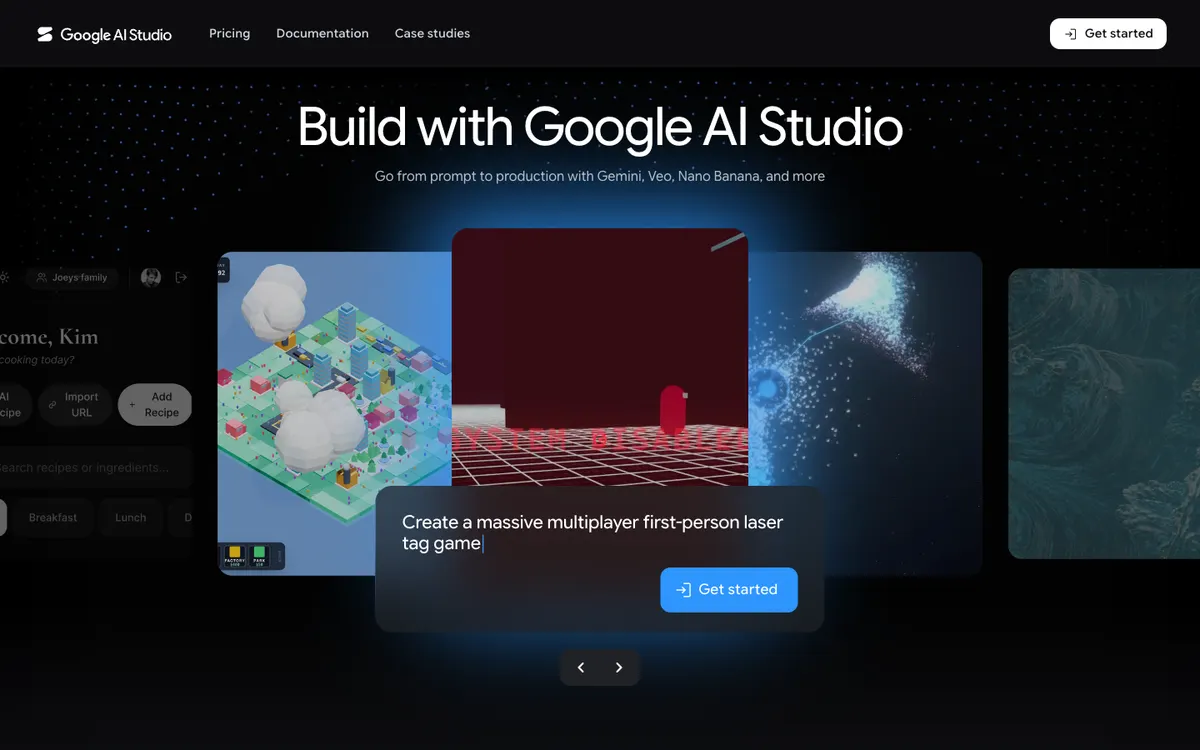 Google AI Studio — the free front end to Gemini’s video understanding
Google AI Studio is the strongest free AI video reader available in 2026, because it is the only one on this list that reads the picture and the audio in the same pass. You paste a YouTube link or upload a file, then ask questions in plain language.
Under the hood, Gemini stores video at 1 frame per second and processes audio at 1Kbps in a single channel, per Google’s video understanding documentation. Models with a 1M-token context handle videos up to about an hour at default media resolution, or three hours at low resolution.
That 1 fps sampling is the whole reason it beats transcript-only tools on screen recordings. It will read a slide, name the UI element on screen, and timestamp the moment a dialog appeared.
Pros
- Reads frames and audio together — works on silent screen recordings
- Up to ~1 hour at default resolution, ~3 hours at low resolution on 1M-context models
- Accepts YouTube URLs directly, no download step
- Free tier is a real allowance, not a countdown trial
- You control the output format by asking for it: notes, timestamps, tables, SRT-shaped text
Cons
- No speaker diarization — it will say “two people are talking”, not label who said what
- 1 fps sampling misses fast motion and quick cuts
- Free tier caps YouTube ingestion at 8 hours per day, and only public videos work
- File API allows 2 GB per file on free versus 20 GB on paid; inline uploads stop at 100 MB
- It is a developer playground, not a notes product — no library, no export button, no sharing
Best for: Screen recordings, product walkthroughs, and any video where what’s on screen matters more than what was said. Pricing: Free tier with no card. Paid usage is billed per token through the Gemini API (checked September 2026).
2. Gemini Notebook (formerly NotebookLM)
 Gemini Notebook — source-grounded answers with a citation on every claim
Gemini Notebook is the best free option for long recordings you need to trust, because every answer links back to the passage it came from. Google renamed NotebookLM to Gemini Notebook in July 2026, when the product had already reached 30 million users and more than 600,000 organizations.
You add a YouTube URL as a source, then ask questions across it — alongside PDFs, docs, and web pages in the same notebook. That cross-source reading is the part no other tool here does.
The honest limit: a YouTube source must be public and captioned, and Gemini Notebook imports the transcript rather than the video. It does not look at your frames.
Pros
- Every answer carries an inline citation you can click back to
- Reads video alongside PDFs, docs, and web pages in one notebook
- Free plan is generous: 100 notebooks, 50 sources per notebook, 50 chat questions a day
- No practical length ceiling on a captioned video — it works from the transcript
- Audio and video overviews are included on free
Cons
- Transcript only for YouTube sources — no frame analysis, no OCR, nothing for a silent capture
- The video must be public and have captions, which rules out most unlisted and private material
- 50 chat questions a day is a real wall on a long research session. Google announced changes to Gemini Notebook usage limits effective September 2, 2026 without publishing the new numbers, so verify before relying on this figure
- No speaker labels in the imported transcript
Best for: Long lectures, webinars, and interviews where you need a quotable answer with a source attached. Pricing: Free with a Google account. Paid tiers arrive through Google AI subscriptions (checked September 2026).
3. TurboScribe
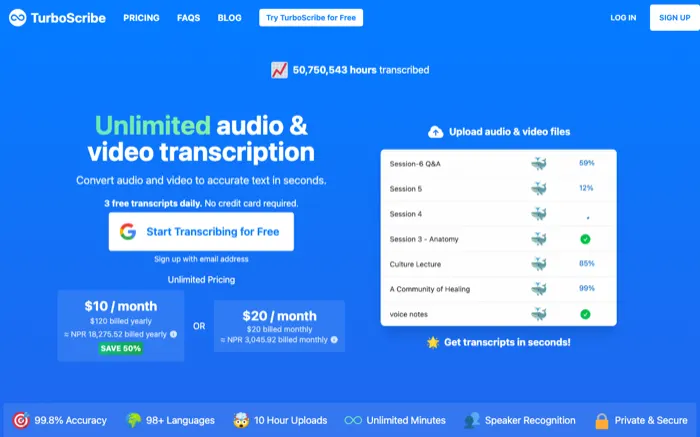 TurboScribe — Whisper-class transcription with speaker ID on the free plan
TurboScribe is the pick when several people are talking, because speaker identification is included on the free plan rather than held back for paid. It is a transcription tool first, so treat it as the audio half of a video reader.
Free gives you 3 transcriptions a day at up to 30 minutes per file, with clean TXT, DOCX, SRT, and PDF exports and no watermark on any of them. Three files a day refreshes daily, which makes it the most usable recurring free allowance on this list.
The 30-minute cap is where it stops. A one-hour panel discussion has to be split before it will go through.
Pros
- Speaker identification on the free plan, not gated behind an upgrade
- 3 transcriptions per day, refreshing daily rather than a monthly pool
- Exports TXT, DOCX, SRT, and PDF with no watermark
- Whisper-class accuracy on clear speech
- No credit card to start
Cons
- 30-minute hard cap per file on free — long recordings must be split manually
- Audio only. It reads nothing on screen, so silent captures return an empty transcript
- No question-answering over the video, just the transcript
- Three files a day is tight if you are working through a backlog
Best for: Panel discussions, interviews, and meeting recordings where you need to know who said what. Pricing: Free (3 files/day, 30 min each). Paid unlimited plans at turboscribe.ai (checked September 2026).
We ranked it against Otter, Notta, and Descript in our roundup of free AI video transcription tools if transcription is the whole job.
4. ScreenApp
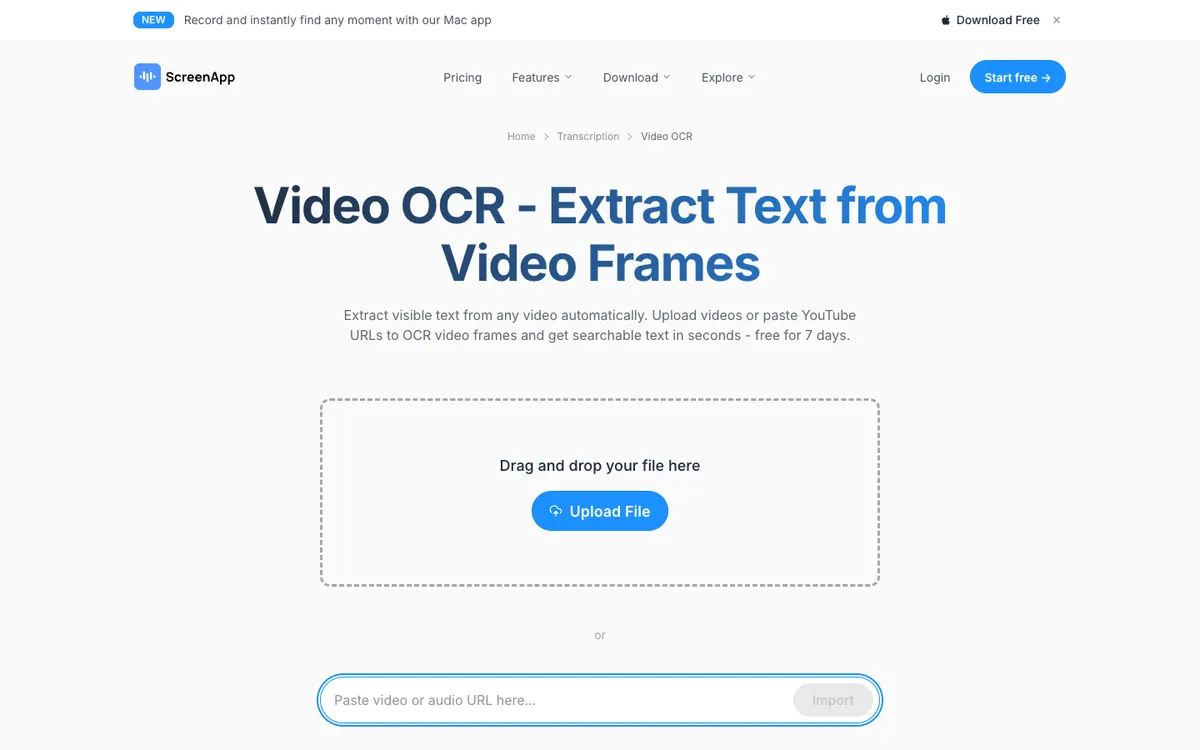 ScreenApp Video OCR — timestamped text pulled straight off the frames
ScreenApp has the best purpose-built OCR here and the harshest free plan here, and both facts matter. Its Video OCR reads visible text off frames — slides, whiteboards, code, overlays — and returns it with timestamps in 30+ languages, exportable as TXT, SRT, or DOC.
It accepts MP4, MOV, AVI, WebM, MKV, FLV, and WMV up to 2 GB, and imports YouTube and Vimeo URLs without a download step. ScreenApp claims above 95% accuracy on clear on-screen text.
Then the free plan: 3 recordings, 3 AI generations per month, 1 transcription per month, and upload or import is not included (checked September 2026). Free OCR on your own files runs through the 7-day trial the OCR page advertises, after which Growth is $19/month billed annually and Business is $34/month.
Pros
- OCR is the product, not a side effect — timestamped text output in 30+ languages
- Handles seven video formats plus YouTube and Vimeo URL import
- Exports OCR results as TXT, SRT, or DOC
- 2 GB per file even outside paid plans
Cons
- The standing free plan blocks upload and import, which is most of why you came
- 1 transcription and 3 AI generations per month on free is barely a demo
- “Free for 7 days” on the OCR page is a trial, not an allowance
- Paid entry at $19/month annually is the real price of using it properly
Best for: Recordings where the value is literally the text on screen — slide decks, code walkthroughs, dashboard tours. Pricing: Free plan (3 recordings, 1 transcription/month, no upload) · 7-day trial · Growth $19/mo annual · Business $34/mo annual (checked September 2026).
5. Memories.ai
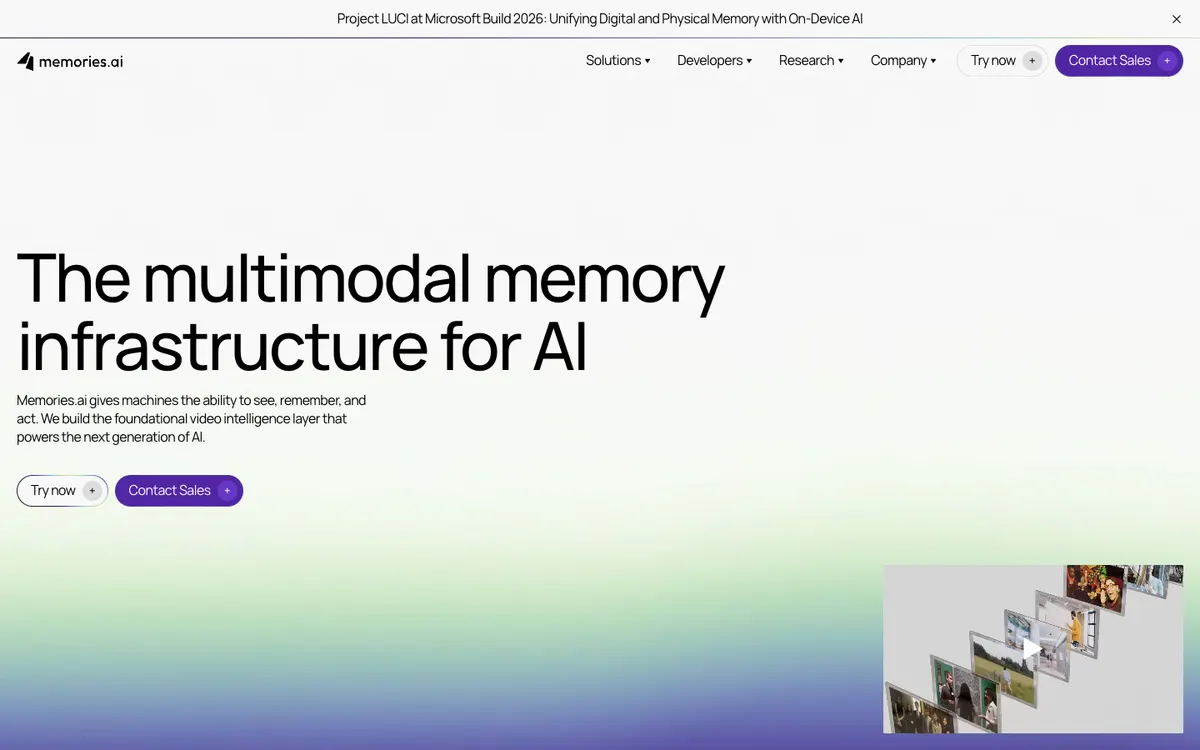 Memories.ai — frame-level video intelligence with clip search across a library
Memories.ai is the only tool here built to read many videos at once rather than one at a time. It analyses frames to detect objects and scenes, tracks multiple speakers, and lets you search for a clip across everything you have indexed.
Free is 100 credits a month with no credit card. That is enough to index a few videos and judge whether the search actually finds what you meant, and not enough to run a library on.
Paid starts at $15/month billed annually for 5,000 credits, priced on usage rather than per seat (checked September 2026).
Pros
- Frame-level analysis — objects, scenes, and context, not just speech
- Clip search across an indexed library, which nothing else here offers
- Multi-speaker tracking built in
- 100 free credits monthly, refreshing, no card
- Usage-priced rather than per-seat, so a team shares one plan
Cons
- 100 credits a month is a sampler, not a working allowance
- Built for developers and enterprise workflows — heavier setup than pasting a link
- Overkill for reading a single video once
- API-first, so the browser experience is thinner than the product pages suggest
Best for: Teams with a growing archive who need to find the clip, not read the transcript. Pricing: Free 100 credits/month · Plus $15/month billed annually for 5,000 credits (checked September 2026).
6. NoteGPT
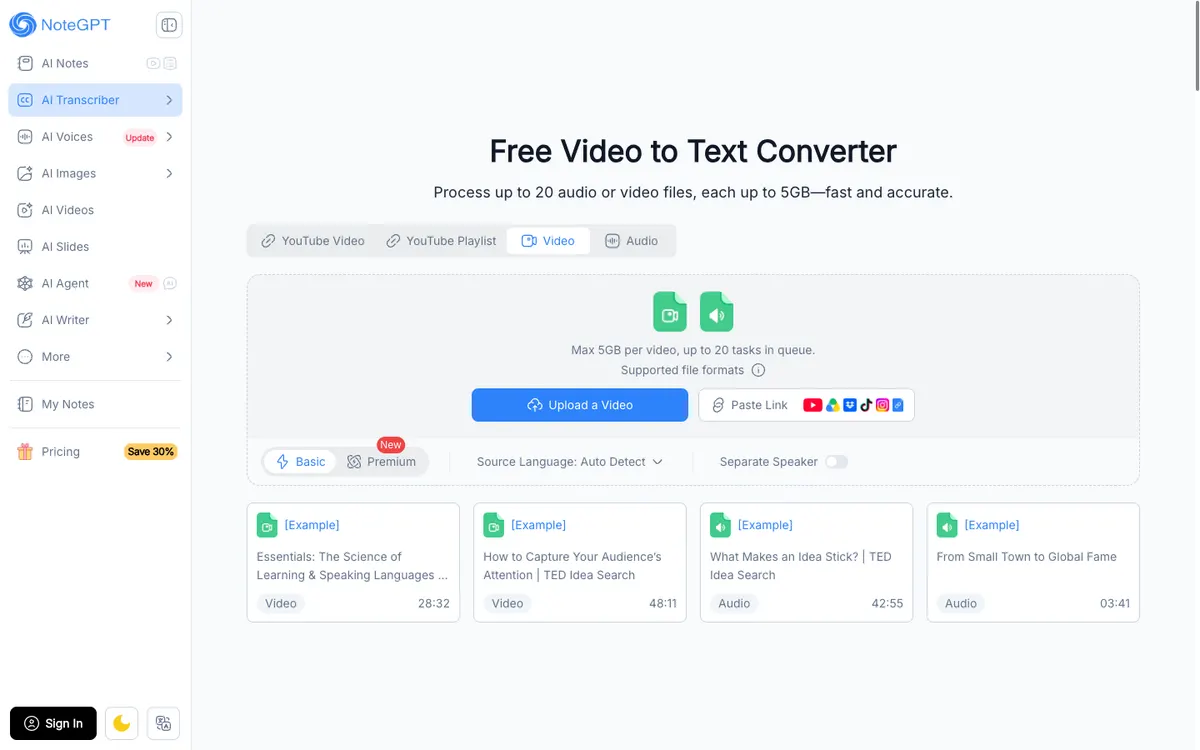 NoteGPT — paste a link, get a transcript and summary in one pass
NoteGPT is the fastest way to get a readable summary of a YouTube video, and the shallowest reader on this list. Paste a link and you get a transcript plus a structured summary with timestamps, no configuration.
Its Video to Text tool processes up to 20 audio or video files at 5 GB each and carries a Separate Speaker toggle, which is more than most quick summarizers offer. Videos with subtitles are handled at any length; uncaptioned ones cap at 2 hours.
The limit is the quota. Free gives 15 AI actions per month, and a summary plus a couple of follow-up questions burns through that in a week.
Pros
- Zero setup — paste a link, get a summary with timestamps
- Separate Speaker toggle on the free video-to-text tool
- Handles captioned videos of any length
- Accepts uploads up to 5 GB and links from several platforms
- Notes are stored permanently on the free plan
Cons
- NoteGPT publishes no free-tier allowance — the pricing page lists paid plans only, so the free ceiling is undocumented
- Summaries stay surface-level compared with asking Gemini a specific question
- No frame reading or OCR — captions and audio only
- Full video-to-text features require signing in
Best for: Deciding whether a 45-minute YouTube video is worth watching. Pricing: Free tier exists but no allowance is published · Pro $9/mo · Unlimited $29/mo · Max $99/mo billed monthly; annual billing drops these to $9 / $19.92 / $69 per month (checked September 2026).
Free AI video reader tools compared
| Tool | Reads on-screen text | Long recordings | Speaker labels | Free allowance | Paid from |
|---|---|---|---|---|---|
| Google AI Studio | Yes — 1 fps frame sampling | ~1 hr default, ~3 hrs low-res | No | Free API tier, 8 hrs YouTube/day | Per-token API |
| Gemini Notebook | No — transcript only | Any captioned length | No | 50 sources/notebook, 50 chats/day | Google AI plans |
| TurboScribe | No — audio only | 30 min per file | Yes | 3 files/day | Paid unlimited tier |
| ScreenApp | Yes — dedicated OCR | 2 GB per file | Yes (paid) | 3 recordings, 1 transcript/month, no upload | $19/mo annual |
| Memories.ai | Yes — frame analysis | Credit-dependent | Yes | 100 credits/month | $15/mo annual |
| NoteGPT | No — captions and audio | Any captioned length, 2 hrs uncaptioned | Yes (toggle) | Not published | $9/mo |
How to choose a free AI video reader
Pick by the failure you cannot afford, not by feature count. If what you actually need is a clean transcript rather than an answer about the footage, our free AI video transcription tools ranking scores that field on accuracy and free-tier ceilings, and our AI video transcription tools comparison picks up where those free limits stop.
- The video is a silent screen recording. Only Google AI Studio, ScreenApp, and Memories.ai read pixels. Everything else returns nothing.
- The recording is over an hour. Gemini Notebook and NoteGPT handle it if it is captioned. TurboScribe will not, at 30 minutes per file.
- Several people are speaking. TurboScribe, free, with speaker ID on. Add NoteGPT’s Separate Speaker toggle if you also want a summary.
- You need to quote it in something official. Gemini Notebook, for the citation on every answer.
- You have fifty videos, not one. Memories.ai, because search across a library is a different problem from reading one file.
- You want it once and never again. Google AI Studio. No install, no account beyond a Google login, no quota you have to track.
What none of these tools do
Reading a video and producing a new one are different jobs, and every tool above stops at the first. They hand you text. None of them gives you back a video anyone can watch.
That second step is where Vidwip sits, and it is worth being clear that Vidwip is not a video reader — it will not write you meeting notes or a study summary. What it does is the opposite direction of travel.
AI Video Voiceover watches your footage, writes the narration scene by scene from what is actually on screen, and reads it in the voice you pick — at 60 credits per finished minute, or $0.60. AI Video Dubbing transcribes, translates, and re-voices an existing video in each speaker’s own voice, into up to 94 languages, from 240 credits per minute per language on the standard model.
Vidwip is free to start with no credit card, enough for a short narrated or dubbed clip. Free accounts reach the same voices, languages and models as paid ones: 74 languages for voiceover, up to 94 for dubbing.
Dubs carry no watermark on any plan, while free-plan voiceovers carry a small Vidwip badge. Paid plans drop the badge and add credits, batches, and more renders at once: 4 on Starter, 10 on Pro, 1 on Free.
If narration is what you are actually after, our ranking of free AI video voiceover tools compares six options on voice quality and export limits.
The verdict
Start with Google AI Studio. It is the only free AI video reader that reads what is on screen and what was said in the same pass, and for screen recordings that difference is the entire result.
Add Gemini Notebook when the material is long and the answer needs a citation. Add TurboScribe when several people are talking and you need to tell them apart.
ScreenApp has the sharpest OCR of the six, but its standing free plan blocks the upload that makes it useful — budget $19/month if that is the tool you want. Memories.ai is the right shape for a library rather than a file. NoteGPT is a triage tool, and a good one, as long as 15 actions a month covers your week.
If the video lives on YouTube, start with how to read any YouTube video with AI, because the free transcript panel settles most questions before any of these tools does.
Reading the video is step one. If step two is turning that footage into something narrated, dubbed, or demo-ready, that is a different tool entirely — and transcription on its own rarely gets you there.