
Google AI Studio is the strongest free AI summary generator for a PDF that contains scanned pages, tables, or charts, because Gemini reads the page as an image rather than scraping text. Gemini Notebook wins on citations and has no page limit at all. Adobe's free summarizer handles 600 pages but explicitly does not read images, so a scanned PDF gets you nothing.
TL;DR — the six free AI PDF summary generators, ranked
Every free AI summary generator will take a PDF. Far fewer will actually read one. The gap shows up the moment your file has a scanned page, a three-column table, or a claim you need to trace back to page 214.
These six are ranked on the things that break: the page ceiling, whether the tool reads pixels or only text, what happens to tables, and whether citations survive into the summary.
| # | Tool | Best at | The free ceiling |
|---|---|---|---|
| 1 | Google AI Studio | Scanned pages, tables, charts | 1,000 pages · 50MB per PDF |
| 2 | Gemini Notebook | Citations you can check | 50 sources · 50 chats/day · no page limit |
| 3 | ChatPDF | One PDF, right now, no account | 2 documents per day |
| 4 | Adobe Acrobat AI summarizer | Text-based business PDFs | 600 pages · under 100MB · limited free requests |
| 5 | Humata | A handful of dense research papers | 60 pages total, not per month |
| 6 | Docling | Scanned and table-heavy files nothing else reads | Unlimited, runs on your machine |
All limits and prices checked September 2026.
What actually breaks when AI summarizes a PDF
A PDF is not a document. It is a set of drawing instructions for a page, and that is the whole reason this category is messier than summarizing an article or a transcript.
Four failure modes account for almost every bad PDF summary.
No text layer. Scanned contracts, photographed receipts, and old journal archives contain images of words, not words. A tool that extracts embedded text sees an empty file and either errors out or invents a summary from the filename and metadata.
Broken reading order. Two-column academic layouts, sidebars, footnotes, and headers get concatenated in the order they were drawn, not the order they are read. The model then summarizes a sentence that was never written.
Flattened tables. A table is usually just positioned text. Strip the positioning and you get a run of loose numbers with no column headings attached, which is exactly how a summary ends up confidently quoting the wrong figure.
Lost provenance. A summary you cannot check is a summary you cannot use in a brief, a literature review, or a board pack. The page reference is not a nice-to-have — it is the difference between a note and a citation.
Rank tools on those four, not on how pretty the output reads.
None of this applies to pasted text, an article URL, or a meeting transcript — those inputs arrive as clean text and the failure modes above never fire. If that is what you are summarizing, the picks are different, and our ranking of free AI summary generators covers that side: ChatGPT, QuillBot, NoteGPT, and where each one stops. This post is only about PDFs.
1. Google AI Studio — the best free AI summary generator for messy PDFs
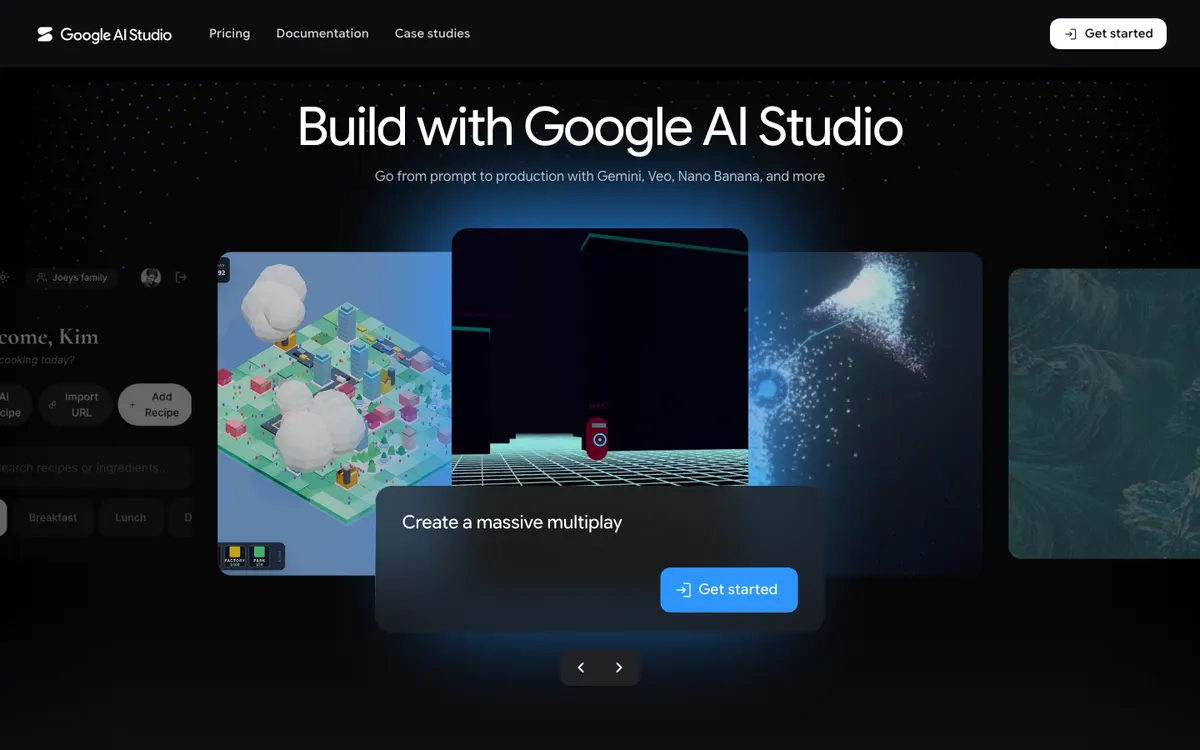 Google AI Studio — free access to Gemini, which reads PDF pages as images rather than scraping their text layer.
Google AI Studio is the strongest free option for any PDF where you do not fully trust the text layer, because Gemini treats document pages as visual input. Scanned pages, charts, diagrams, and tables all get read rather than skipped.
The published limits are specific. Gemini supports PDF files up to 50MB or 1,000 pages, and each page is counted as 258 tokens (Google’s document processing docs, checked September 2026). Pages larger than 3072 x 3072 are scaled down; smaller pages are scaled up to 768 x 768.
There is a second detail worth knowing. On Gemini 3, text embedded natively in a PDF is extracted and handed to the model, and you are not charged for tokens from that native text — so a text-based PDF costs far less to process than a scanned one of the same length.
Google’s own guidance is blunt about input quality: make sure pages are correctly oriented and not blurry. A crooked phone photo of a page will summarize worse than a clean scan.
Pros
- Reads text, images, diagrams, charts, and tables on the page — the only free tool here that handles all four natively
- 1,000 pages per file, the highest published page ceiling in this list
- No native text charge on Gemini 3 for text already embedded in the PDF
- Free tier requires no payment method, and the same model is available through the API when you outgrow the UI
Cons
- No citation interface. You get an answer, not a clickable link back to page 214
- Free-tier rate limits are not published as fixed numbers — they are shown inside AI Studio and change with usage tier
- Document vision only meaningfully understands PDFs. Other formats are treated as plain text
- It is a developer playground, not a reading app. There is no side-by-side document view
Best for: scanned PDFs, financial reports, anything with charts or tables. Pricing: free tier, no card required. Paid usage is metered through the Gemini API (checked September 2026).
2. Gemini Notebook — the free PDF summarizer with citations you can check
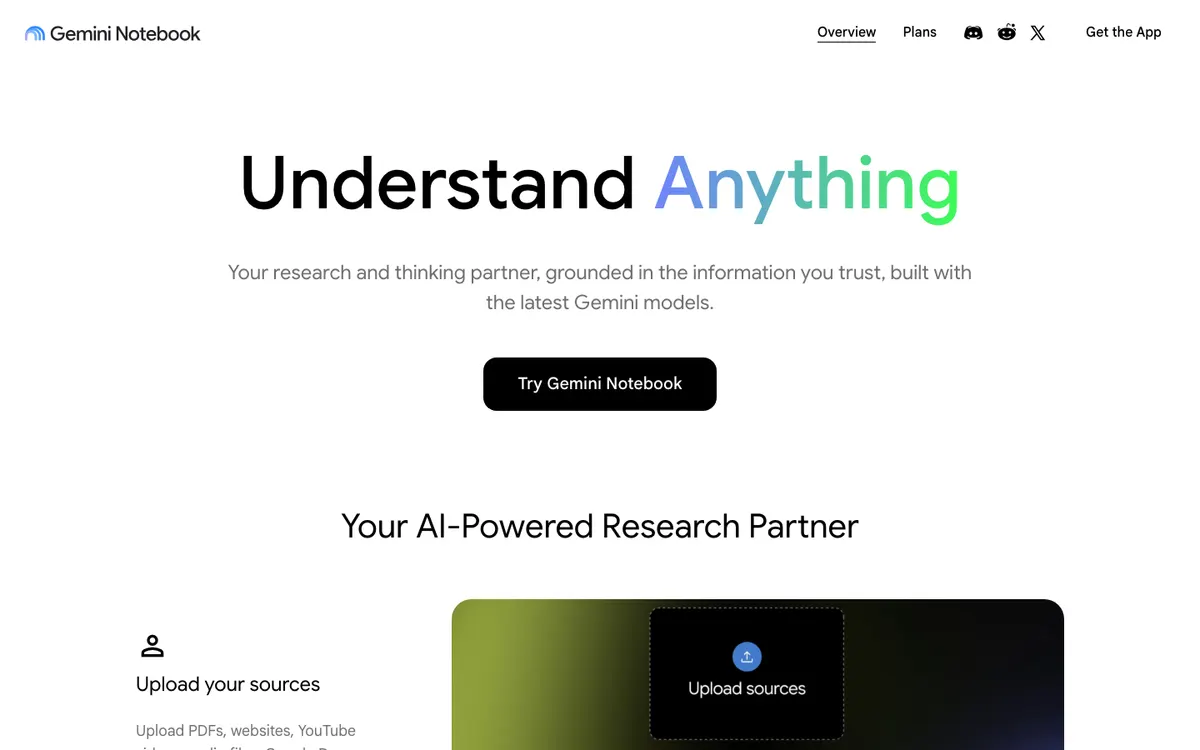 Gemini Notebook — grounds every answer in your uploaded sources and shows the exact quote behind it.
Gemini Notebook, formerly NotebookLM, is the free tool to reach for when the summary has to be defensible. Google’s pitch is “see the source, not just the answer” — every response carries clear citations that show the exact quotes from your sources.
The source limits are unusually generous for a free product: up to 500,000 words per source or 200MB for local uploads, with no page limit stated at all. On the free tier you get 50 sources per notebook and 100 notebooks (Google’s published limits, checked September 2026).
Daily allowances are where the free plan bites: 50 chats a day, 3 audio overviews, 3 video overviews, and 10 a day each for reports, flashcards, quizzes, and mind maps. Deep Research runs 10 times a month. Google’s own help page also flags that usage limits changed from 2 September 2026, so check the numbers before you plan around them.
The catch for PDF work is image handling. Google supports image sources but notes that certain types of images may not work as well, and offers no explicit guarantee that an image-only PDF gets OCR’d. Copy-protected PDFs cannot be imported at all.
Pros
- No page limit — a 900-page annual report goes in as one source
- Citations show the exact quote, which makes claims checkable in seconds
- 50 sources per notebook means you can summarize across a stack of PDFs, not one at a time
- Genuinely free with a Google account, no card and no trial clock
Cons
- 50 chats a day is a real ceiling on a heavy research session
- No stated OCR guarantee for image-only PDFs
- Copy-protected PDFs are rejected outright
- Usage limits changed in September 2026 and Google warns they can change again
Best for: literature reviews, long reports, and any summary that will be quoted elsewhere. Pricing: free with a Google account (checked September 2026).
3. ChatPDF — the fastest free AI PDF summary generator with no account
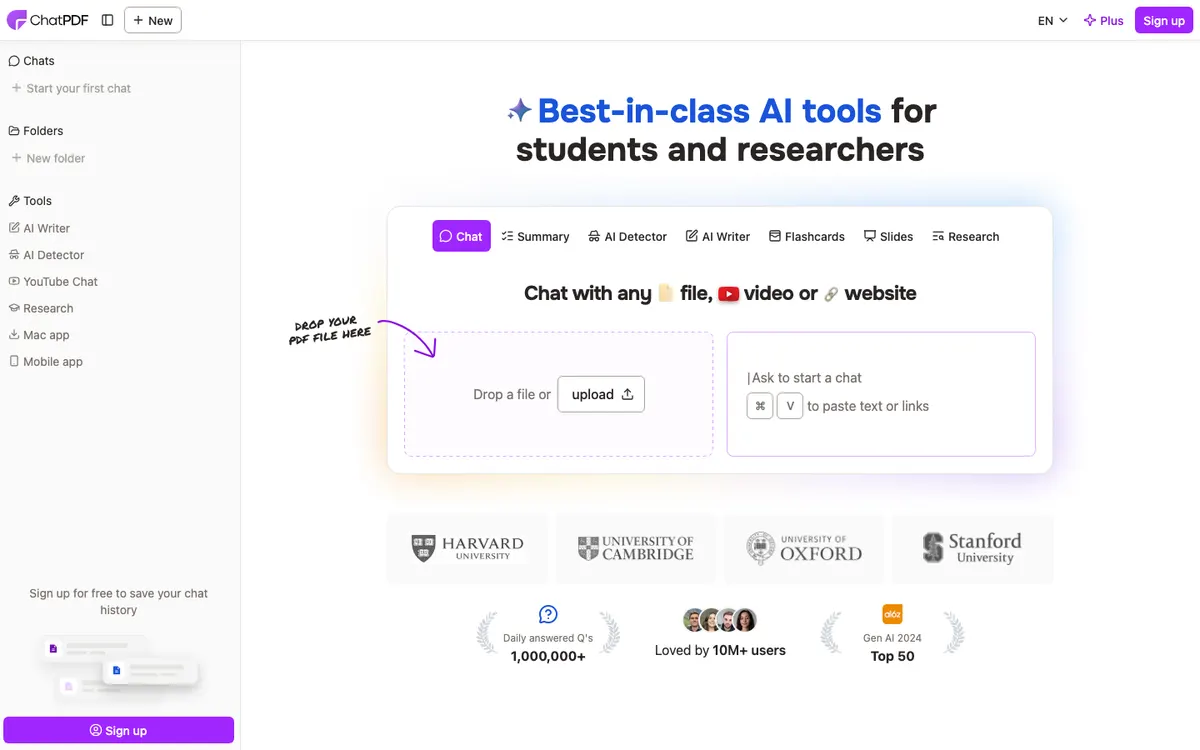 ChatPDF — drop a file, get a summary, click a citation to jump to the passage it came from.
ChatPDF is the shortest path from a PDF on your desktop to a summary on your screen. There is no account required to get started, and the free plan lets you analyse 2 documents every day.
The interface is the point. Chat sits beside the document, and clickable citations scroll the PDF to the exact source of an answer — the same verification loop Gemini Notebook offers, but on a single file with no setup.
It accepts more than PDFs: .pdf, .doc, .docx, .ppt, .pptx, .md, and .txt. Documents can be uploaded in any language and questioned in another, which makes it the easiest option in this list for a foreign-language contract or paper. Under the hood it routes between GPT-4o and GPT-4o-mini depending on the query.
What ChatPDF does not publish is a page cap or a file-size cap. Neither number appears on its site, so you discover them by hitting them — worth knowing before you feed it a 700-page filing.
Pros
- No sign-up needed to run the first summary
- Clickable citations jump straight to the source passage in the PDF
- Handles DOCX, PPTX, MD and TXT alongside PDF
- Upload in one language, ask questions in another
Cons
- 2 documents a day is the hardest free ceiling in this list
- Page and file-size limits are not published anywhere on the site
- Multi-document chat requires a free account and a folder
- No OCR claim for scanned files
Best for: one document, right now, with no setup. Pricing: free plan covers 2 documents per day; ChatPDF Plus adds unlimited document analysis (checked September 2026).
4. Adobe Acrobat AI summarizer — free requests inside the PDF you already have open
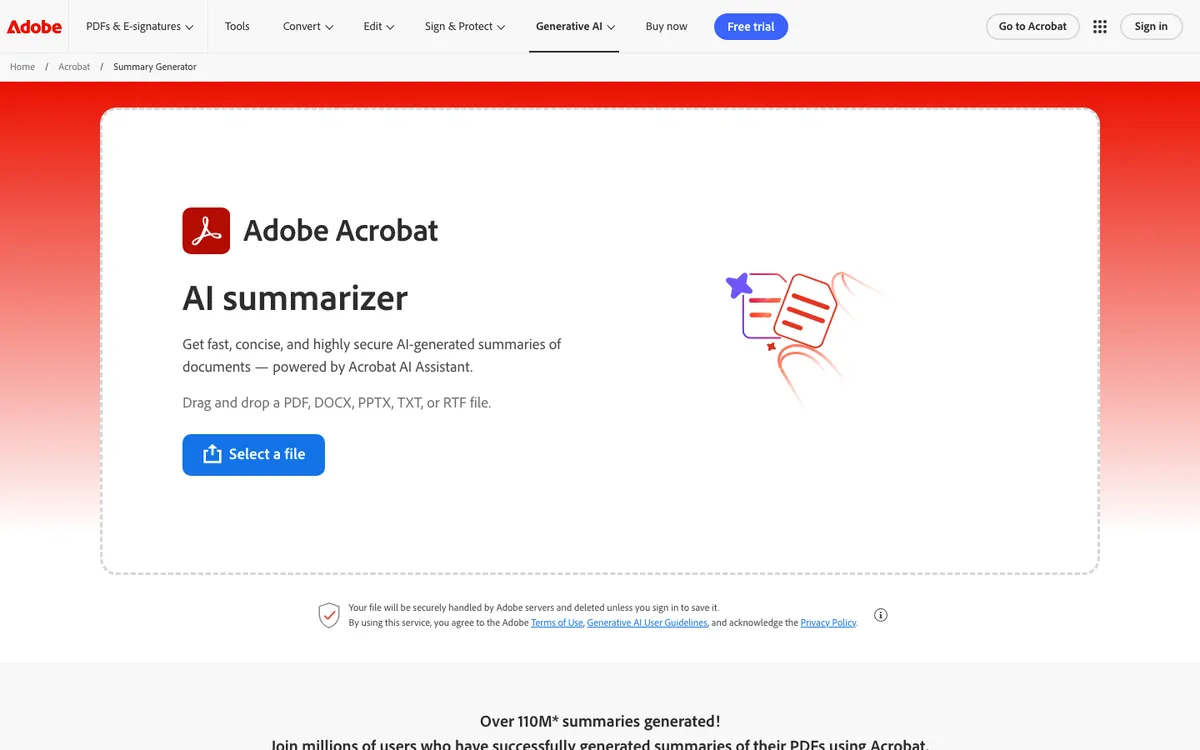 Adobe Acrobat AI summarizer — drag in a PDF, DOCX, PPTX, TXT or RTF and get a summary with numbered attributions.
Adobe’s online summarizer is the low-friction option for business documents, and its attribution model is the best-designed of the six. AI Assistant answers carry numbered attributions; select a numbered link and Acrobat highlights the source content directly in the document.
Free access is real but rationed. Adobe offers free Acrobat users a complimentary, limited number of AI Assistant requests, and files run through the web tool are deleted unless you sign in to save them. Full access sits behind a subscription — Acrobat Studio, which bundles AI Assistant, lists at $24.99/month billed annually or $34.99 month-to-month (checked September 2026).
The file requirements are published and generous: under 100MB, up to 600 pages, no password protection or usage restrictions, and no PDF Portfolios (Adobe’s technical requirements, updated 1 September 2026).
Then there is the line that decides whether this tool is right for your file: AI Assistant does not support images or complex vector graphics. A scanned PDF is images. If your document was produced by a scanner or a camera, this is the wrong tool and no setting will fix it.
Pros
- 600 pages and 100MB — the second-highest page ceiling here
- Numbered attributions highlight the source passage inside the document itself
- Accepts DOCX, PPTX, TXT and RTF as well as PDF
- Works where the file already lives if you use Acrobat or Acrobat Reader
Cons
- Does not support images or complex vector graphics, so scanned PDFs are out
- Free usage is a limited number of requests, not a recurring monthly allowance
- Prompts must be under 500 characters, and text selections under 8,000 characters on a single page
- Generative AI features are limited to 13 languages on desktop and web, and English only for webpages
Best for: text-based contracts, reports, and decks you already open in Acrobat. Pricing: limited complimentary requests free; Acrobat Studio from $24.99/month billed annually (checked September 2026).
5. Humata — 60 free pages of cited answers on dense research PDFs
 Humata — answers come with cited links back into the source file so you can trace each insight.
Humata is built for the case where a summary is the start of the work, not the end of it. It answers across a set of documents and returns cited links into your source files, so you can trace where each insight came from.
Its free tier is metered in an unusual way, and it is the single most important thing to understand before you start. The free plan covers basic features for up to 60 free pages of use — a total allowance, not a monthly one. Two 30-page papers exhausts it.
Paid tiers are page-metered too. Expert runs $9.99/month with 500 pages a month, and Team is $49 per user per month with 5,000 pages. Overage is $0.02 per page on Expert and $0.01 per page on Team (Humata pricing, checked September 2026).
Page-based pricing is honest about what actually costs money in this category, and it makes Humata predictable in a way per-message plans are not. It also makes the free tier a trial rather than a tool.
Pros
- Highlighted citations link back into the source file
- Answers span multiple documents in one question
- Page-metered pricing is easy to forecast against a known stack of PDFs
- Embeddable in a webpage, which none of the others here offer
Cons
- 60 free pages is a lifetime allowance, not a monthly reset
- No published OCR claim for scanned documents
- Long documents burn the free allowance in a single upload
- Cheapest paid tier still caps at 500 pages a month
Best for: two or three dense papers where you need traceable answers before you commit to a paid plan. Pricing: free for 60 pages total; Expert $9.99/month for 500 pages/month (checked September 2026).
6. Docling — the free way to read scanned, table-heavy PDFs
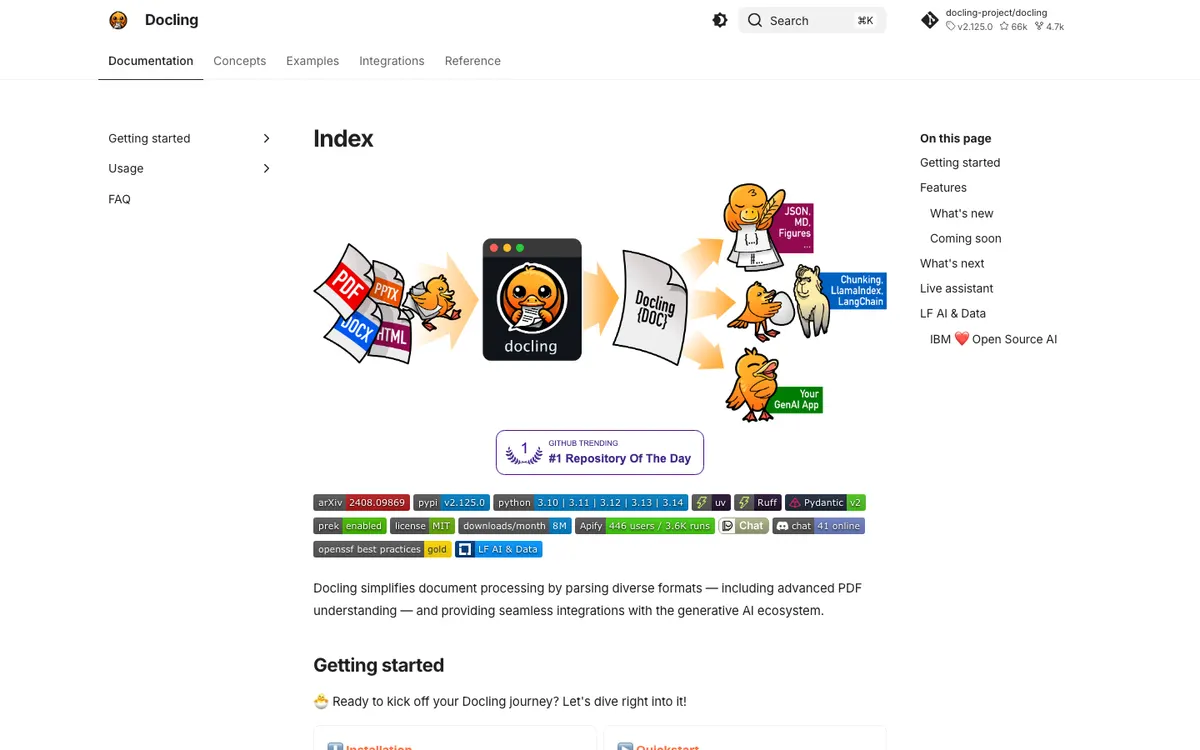 Docling — an MIT-licensed parser that turns hostile PDFs into clean Markdown before any model reads them.
Docling is not a summarizer, and including it here is deliberate. It is the free fix for the two PDFs that defeat every tool above: the scanned one, and the one that is mostly tables.
It is an MIT-licensed project under LF AI & Data, originating at IBM. It advertises advanced PDF understanding including page layout, reading order, table structure, code, formulas, and image classification, plus extensive OCR support for scanned PDFs and images. Output goes to Markdown, HTML, JSON, and DocTags.
The workflow is two steps instead of one. Convert the PDF to Markdown with Docling, then paste that Markdown into any free chat model for the summary. Because reading order and table structure are reconstructed before the model sees anything, the summary is working from a document rather than a jumble.
It also runs locally, which is the only real answer in this list to a confidential file. Docling explicitly supports local execution for sensitive data and air-gapped environments — the PDF never leaves your machine.
Pros
- OCR for scanned PDFs and images, built in and free
- Reconstructs table structure and reading order before any model sees the text
- No page limit, no daily cap, no account — MIT licensed and free forever
- Runs entirely locally, so confidential documents never get uploaded
Cons
- Requires Python and a command line. This is not a web app
- Produces a clean document, not a summary — you still need a model for that
- First run downloads models, so it is not instant
- Overkill for a clean 12-page text PDF
Best for: scanned archives, table-heavy filings, confidential documents, and unlimited volume. Pricing: free and open source under the MIT licence (checked September 2026).
Free AI PDF summary generator comparison
| Tool | Page limit | Reads scanned PDFs | Tables | Citations | Free ceiling |
|---|---|---|---|---|---|
| Google AI Studio | 1,000 pages / 50MB | Yes — reads pages as images | Read natively as page content | No citation UI | Free tier, limits shown in-app |
| Gemini Notebook | None stated (500k words / 200MB) | Not guaranteed | Text-layer dependent | Exact quotes shown | 50 sources · 50 chats/day |
| ChatPDF | Not published | Not claimed | Text-layer dependent | Clickable, scrolls to source | 2 documents/day |
| Adobe Acrobat | 600 pages / 100MB | No — images unsupported | Text-layer dependent | Numbered attributions in-document | Limited free requests |
| Humata | Metered in pages | Not claimed | Text-layer dependent | Highlighted links to source | 60 pages total |
| Docling | None | Yes — OCR built in | Table structure reconstructed | N/A — parser, not summarizer | Unlimited, local |
All figures from vendor documentation, checked September 2026.
The “free” PDF summarizers that are not free
Two of the biggest names in the PDF space rank for “free AI summarizer” and then charge for the AI. Worth knowing before you upload.
iLovePDF markets an AI Summarizer, but AI features run on AI credits and the free plan includes none of them. Free users get essential tools and limited document processing; Premium is $7/month billed monthly, or $4/month billed annually as $48 (checked September 2026).
Smallpdf is the same shape. Its free plan is explicitly limited access with limited document downloads, while OCR and unlimited access to AI-powered tools both sit on Pro at USD 9.00/month, billed as USD 108.00/year (checked September 2026).
Neither is a bad product. They are just not free AI PDF summary generators, and a listicle that says otherwise is wasting your upload.
How to choose
Pick on the document, not the brand.
- Your PDF is scanned or photographed → Google AI Studio, or Docling if it cannot leave your machine
- You need to quote the summary somewhere that matters → Gemini Notebook for exact quotes, ChatPDF for a clickable jump to the page
- You need it done in the next 60 seconds with no account → ChatPDF
- The file is over 600 pages → Gemini Notebook, which publishes no page limit, or Google AI Studio up to 1,000 pages
- The document is confidential → Docling, locally. Everything else is an upload
- Tables are the whole point → Docling to convert, then any model to summarize
Getting a better summary out of any of them
Tool choice gets you most of the way. These four habits get you the rest.
Say what the summary is for. “Summarize this” produces a book report. “List every payment obligation with the clause number” produces something you can act on.
Give it a page range. On a long PDF, asking for pages 40–60 beats asking for the whole document and hoping the middle survived. It also stretches page-metered free tiers.
Ask for the quote, not the claim. Requesting the supporting sentence alongside each point turns a summary into something checkable, even on tools with no citation interface.
Check one number by hand. Open the source page for a single figure in the summary. If a table got flattened, that is where you find out — before it reaches a slide.
Once the reading is done, the same material often needs a second life as something people watch rather than read. That is a different problem with different tools, and we cover it in AI video readers and summarizers and the best AI video readers.
The verdict
For most people, Google AI Studio is the best free AI summary generator for PDF files in 2026. It reads the page instead of scraping it, takes 1,000 pages a file, and costs nothing to try.
Use Gemini Notebook when the summary has to be defensible, because exact-quote citations and no page limit is a combination nothing else here matches for free. Use ChatPDF when you want an answer in a minute and do not want an account.
Skip Adobe if your PDF is scanned — its own documentation rules out images. Treat Humata’s 60 pages as a trial. And when a PDF genuinely defeats everything, Docling turns it into clean Markdown for free, on your own machine.
Related reading: free AI video reader tools, free AI video transcription tools, and the best AI video transcription tools.