
Google AI Studio is the only tool here that reads actual video frames — it samples at 1 frame per second and handles up to 3 hours of footage, which makes it the pick when the substance is on screen rather than in the speech. Gemini Notebook is the best free option for students but imports YouTube transcripts, not video. TurboScribe wins on transcript accuracy and language coverage at $10/month. ScreenApp is the only one with true video OCR built for teams.
TL;DR
The best AI video reader depends on one question: does the meaning of your video live in the speech, or on the screen? Answer that and the shortlist collapses to one tool.
This ranking scores tools on capability first and treats price as a tiebreaker. If your budget is the hard constraint, read our ranking of free AI video reader tools instead, which names the exact free-tier ceiling on each one. If you need the summary rather than the transcript, see AI video readers and summarizers.
- Google AI Studio — best overall. The only pick here that reads actual frames, at 1 frame per second, on videos up to 3 hours long.
- Gemini Notebook — best for students. Free, source-grounded, cites back to the moment it drew from. Imports YouTube transcripts, not video.
- TurboScribe — best transcript accuracy and language coverage. 98+ languages, 10-hour uploads, $10/month billed yearly.
- ScreenApp — best for marketing teams. Real video OCR, auto chapters, and action items across a shared workspace.
What an AI video reader actually reads
An AI video reader converts a video into text you can search, quote, and summarize. The good ones read two channels: the spoken audio, and the pixels.
That split is the whole story. Most tools marketed as video readers are transcription engines with a summary prompt bolted on, and they go blind the moment the important thing is a slide instead of a sentence.
Four things separate them.
Transcript accuracy. Word error rate on real recordings, not studio audio. Whisper-class models land near 2.7% on clean benchmark speech and 8-12% on messy real-world audio, per published benchmark work on video transcription. Accents, crosstalk, and jargon are where the gap opens.
Summary quality. A summary is only as good as what fed it. A tool that never saw the screen writes confident summaries with holes in them.
Language coverage. Two separate numbers: how many languages it can transcribe, and how many it can translate the result into. They are rarely the same.
Price. What you pay for the volume you actually process. A free tier that caps you at one file a month is a demo, not a plan.
1. Google AI Studio
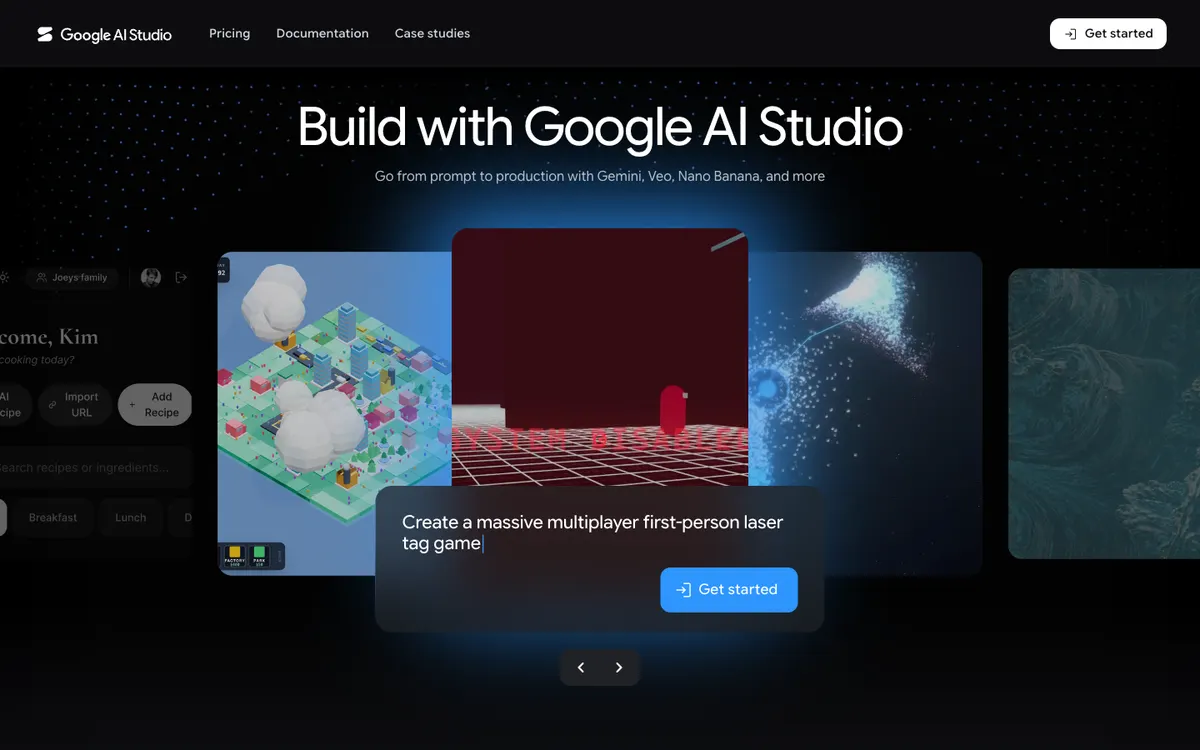 Google AI Studio — Gemini’s video understanding, free to use in the browser
Google AI Studio is the best AI video reader for anything where the screen carries the information. It is the only tool on this list that processes video frames rather than a transcript of the audio.
Google’s video understanding documentation spells out the mechanism: Gemini samples video at 1 frame per second by default, processes audio at 1 Kbps, and stamps a timestamp every second. You can raise the frame rate when a fast demo needs it.
That means you can ask “what error message appears at 4:12?” and get an answer. No transcript-based tool can do that, because the error message was never spoken.
Models with a 1M-token context handle up to 3 hours of video at low media resolution, or 1 hour at high resolution. You can also paste a public YouTube URL straight in.
Pros
- Reads frames, not just audio — slides, charts, UI states, and body language are all in scope
- Adjustable frame rate for dense screen recordings
- Public YouTube URLs work directly, no download step
- Free tier covers real work, including up to 8 hours of YouTube video per day
- Timestamps every second, so every claim is traceable to a moment
Cons
- It is a developer playground, not a notes app — no library, no team workspace, no export templates
- Free tier caps Files API uploads at 2 GB (20 GB on paid)
- 1 fps sampling can miss a frame that flashes for half a second unless you raise the rate
- You write the prompt. There is no one-click “summarize this” button that a student would recognize
Best for: Researchers, analysts, and anyone reading video where the substance is on screen. Pricing: Free tier with rate limits. Paid usage runs $0.75 per 1M input tokens on Gemini 3.8 Flash and $2 per 1M on Gemini 3.1 Pro Preview for prompts under 200k tokens (checked September 2026).
2. Gemini Notebook
 Gemini Notebook — the tool formerly known as NotebookLM, renamed in July 2026
Gemini Notebook is the best free AI video reader for students, because every answer it gives links back to the source passage it came from. Google renamed NotebookLM to Gemini Notebook on 16 July 2026; the product is the same research workspace.
You drop in lecture recordings, YouTube links, PDFs, and slides, then ask questions across all of them at once. The citation behaviour is the reason to pick it over a chatbot: you can check the answer instead of trusting it.
The limit worth knowing before you commit a semester to it: a YouTube source has to be public and have captions, and Gemini Notebook imports the transcript rather than the video. Anything written on the lecturer’s whiteboard and never read aloud does not make it in.
Free notebooks hold 50 sources, each up to 500,000 words or 200 MB. Pro raises that to 300 sources per notebook.
Pros
- Every answer cites the source passage, so claims are checkable
- Cross-source questioning — ask one question across twelve lectures
- Genuinely usable free tier: 50 sources per notebook, no card
- Generous per-source ceiling at 500,000 words or 200 MB
- Study aids like briefing docs and audio overviews come built in
Cons
- YouTube sources import the transcript, not the video — on-screen content is lost
- Public videos with captions only; private and unlisted links are rejected
- No frame reading, so silent demos and chart-heavy talks summarize poorly
- The Pro upgrade is bundled into a broader Google AI subscription rather than sold on its own
Best for: Students and researchers building a searchable, checkable body of lecture and interview material. Pricing: Free with 50 sources per notebook. Pro at $19.99/month via Google AI Pro, which raises the cap to 300 sources; a cheaper Google AI Plus tier sits at $4.99/month (checked September 2026).
3. TurboScribe
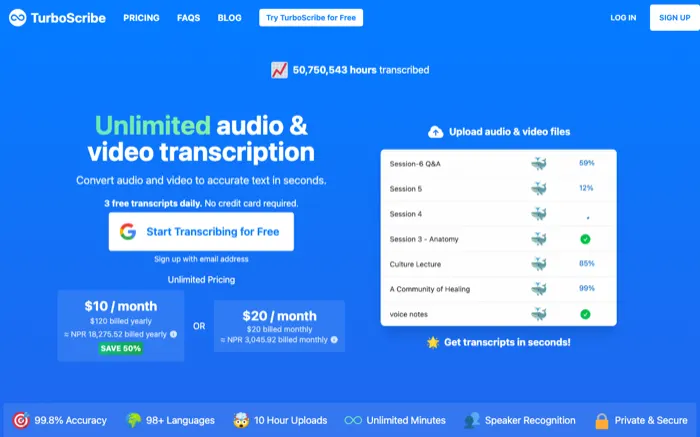 TurboScribe — unlimited transcription with 98+ input languages and 134+ translation targets
TurboScribe is the best AI video reader when you need the words exactly right, in a language nobody else supports, at the lowest price per hour. It reads audio only, and it reads it very well.
The numbers are the pitch. 98+ transcription languages, translation into 134+, uploads up to 10 hours or 5 GB, and 50 files queued at once on the paid plan.
There is no minute quota on Unlimited. That matters if you are working through an archive rather than a weekly meeting, where per-minute pricing turns a backlog into a budget line.
The free tier is real too: 3 transcripts a day at up to 30 minutes each, refreshing daily rather than expiring. For a student transcribing one lecture a day, that is the whole job for $0.
Pros
- Widest language coverage here — 98+ for transcription, 134+ for translation
- 10-hour, 5 GB uploads handle full conference sessions and long interviews
- No minute quota on the paid plan, which is rare in this category
- Free tier refreshes daily instead of expiring after a trial window
- Cheapest paid plan on this list by a wide margin
Cons
- Audio only. Nothing on screen is read, so silent recordings return nothing useful
- Summaries are secondary to the transcript — this is a transcription engine first
- The 30-minute cap on free files rules out most recorded talks and webinars
- The $10/month rate needs a full year up front; month-to-month doubles it
Best for: Long recordings, multilingual archives, and anyone who cares more about the transcript than the summary. Pricing: Free at 3 transcripts per day, 30 minutes each. Unlimited at $10/month billed yearly ($120/year) or $20/month billed monthly (checked September 2026 on the TurboScribe pricing page).
4. ScreenApp
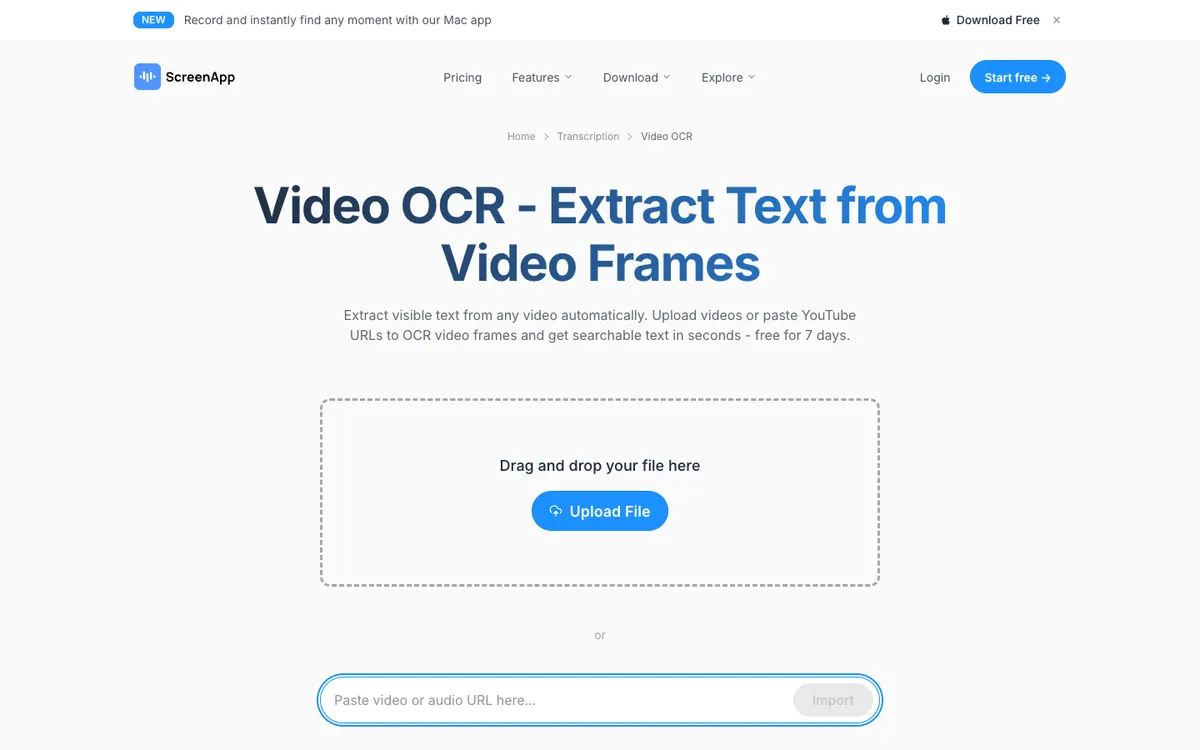 ScreenApp — dedicated video OCR that pulls visible text out of frames
ScreenApp is the best AI video reader for marketing and product teams, because it is the only one here that combines frame OCR with a shared workspace. Google AI Studio reads frames better; it just has nowhere to put the result.
The video OCR feature extracts visible text from any uploaded file or pasted YouTube URL — slides, whiteboards, overlays, and UI labels. For anyone auditing competitor demos or pulling copy out of a webinar deck, that is the specific job it does that a transcript cannot.
On top of that you get timestamped summaries, auto-detected chapters, speaker-attributed quotes, and action items. Paid plans add translation into 100+ languages.
The catch is the free plan, and it is a real one. Three recordings, three AI generations a month, one transcription a month — and no file upload, no URL import, and no export. Reading an existing video for free is essentially not on offer.
Pros
- True video OCR on both uploads and YouTube URLs
- Timestamped summaries with auto chapters and speaker-attributed quotes
- Built for teams: shared library, search across everything, API on Business
- Translation into 100+ languages on paid plans
- Meeting bot joins calls and captures them without anyone hitting record
Cons
- The free plan cannot upload a file or import a URL, which rules out reading an existing video
- Most useful capabilities sit behind the paid tiers, not the free one
- Growth’s 600 AI credits per year is a low ceiling for a team processing video weekly
- Video analysis is capped at 120 per year even on Business
- The cheapest advertised rates require annual billing
Best for: Marketing and product teams reading competitor demos, webinars, and recorded walkthroughs together. Pricing: Free plan at 3 recordings and 1 transcription per month, with no upload or export. Growth $19/month and Business $34/month, both billed annually; Enterprise from $199/month (checked September 2026 on the ScreenApp pricing page).
Head-to-head comparison
| Tool | Reads on-screen frames | Languages | Free tier | Paid from | Best for |
|---|---|---|---|---|---|
| Google AI Studio | Yes — 1 fps, adjustable | Gemini’s full multilingual range | Yes, rate-limited; 8 hrs YouTube/day | $0.75 per 1M input tokens | On-screen detail, research |
| Gemini Notebook | No — YouTube transcript only | Follows Gemini | Yes, 50 sources per notebook | $19.99/mo (Google AI Pro) | Students, checkable notes |
| TurboScribe | No — audio only | 98+ transcribe, 134+ translate | 3 files/day, 30 min each | $10/mo billed yearly | Long, multilingual archives |
| ScreenApp | Yes — video OCR | 100+ translation on paid | 1 transcription/mo, no upload | $19/mo billed yearly | Marketing and product teams |
All prices checked September 2026.
How to choose the best AI video reader for your work
Five decisions, in the order they actually matter.
Is the information spoken or shown? If it is shown — slides, dashboards, code, a silent screen recording — you need Google AI Studio or ScreenApp. Everything else returns a thin summary and you will not notice what is missing.
Do you need to check the answer later? Gemini Notebook. Citation back to the source passage is the difference between notes you can cite and notes you have to re-watch.
How long are the files? TurboScribe takes 10-hour uploads. Google AI Studio tops out near 3 hours at low resolution. Gemini Notebook caps each source at 200 MB.
How many languages? TurboScribe, and it is not close. 98+ in, 134+ out.
Does a team need the output? ScreenApp is the only one built as a shared library. The Google tools are single-user surfaces with no real handoff.
If you want the transcript itself to be the deliverable rather than an input to a summary, the tools built specifically for that job are ranked in our guide to the best AI video transcription tools, with the free-only options covered separately in free AI video transcription tools.
Where reading a video ends and remaking one begins
Every tool above stops at text. You get a transcript, a summary, maybe a set of chapters — and the video itself is untouched.
That is a different job from changing what the video says. If you need the same footage speaking Spanish, or a raw screen recording turned into a narrated walkthrough, no reader does that.
Vidwip sits on the other side of that line. AI Video Dubbing transcribes, translates, and re-voices a video in up to 94 languages while keeping the original speaker’s voice, and AI Demo Polisher reads a screen recording and writes and voices a scene-by-scene script over it.
Transcription happens inside those workflows rather than as a product you buy on its own. Dubbing runs 240 credits per minute of source video per language on the v1 model, demo narration 60 credits per finished minute, and Vidwip is free to start with no credit card — see the full pricing.
Dubs carry no watermark on any tier, free included. Demo renders on the free plan carry a small Vidwip badge, and paid plans have no watermark.
If a voiceover rather than a dub is what you are after, the tools for that are compared in our AI video voiceover generator roundup, and product-demo tooling in the AI product demo video maker guide.
Final verdict
Google AI Studio is the best AI video reader in 2026. Nothing else reads the picture as well, and the free tier is generous enough to test it on your own footage this afternoon.
Gemini Notebook is the one to hand a student. Free, grounded, and it cites itself — just know the YouTube transcript limit before you build a semester on it.
TurboScribe wins on the boring things that decide real projects: accuracy, 98+ languages, 10-hour files, $10 a month. If you have an archive rather than a question, start there.
ScreenApp is the team answer. It is the priciest way to read a video here, and the only one where four people can read the same one.
If you are still deciding whether a reader fits the job at all, what an AI video reader is and where it fails explains frame sampling and the four places the technology still breaks. And if the output format matters more than the tool, AI video reader to text covers when to ask for TXT, SRT, VTT, JSON or Markdown.
Start with the free tier of whichever matches the question you are asking. Three of the four have one worth using.