
For free AI video editing without a watermark, start with Clipchamp (1080p, no watermark, AI captions and silence removal) or DaVinci Resolve (fully free, AI tools are Studio-only). Descript, Kapwing, VEED and Gling watermark free exports. Vidwip AI Studio has no watermark but its 100 credits are a one-time grant, not a monthly plan.
If you search for ai video editors free of charge, almost every result is a freemium trial with a catch: a watermark, a 720p ceiling or an AI allowance that runs out in an afternoon. This list compares nine of them on those exact limits so you can see the catch before you sign up.
We compared each vendor’s own pricing and product pages in November 2026 and did not run hands-on tests. Where a page did not state a limit, we say so instead of guessing.
What “free” means for AI video editors
Free means one of three things. A plan that stays open forever with limits (Clipchamp, Kapwing, VEED, Descript, Gling, CapCut, Adobe Express), a free download with the AI behind a paywall (DaVinci Resolve), or a one-time credit grant (Vidwip).
Four limits decide whether a free tier is usable. Check export resolution, watermark, export length and the AI allowance before you build a workflow on it.
Quick picks
| Want | Use |
|---|---|
| No watermark, 1080p, AI captions and silence removal | Clipchamp |
| A fully free desktop editor for serious cuts | DaVinci Resolve |
| Cut by deleting words, no watermark, one-time free start | Vidwip AI Studio |
| Unlimited dynamic captions, with a watermark | Descript |
| Mobile and desktop with a big template library | CapCut |
| Quick browser edits under four minutes | Kapwing |
1. Vidwip AI Studio
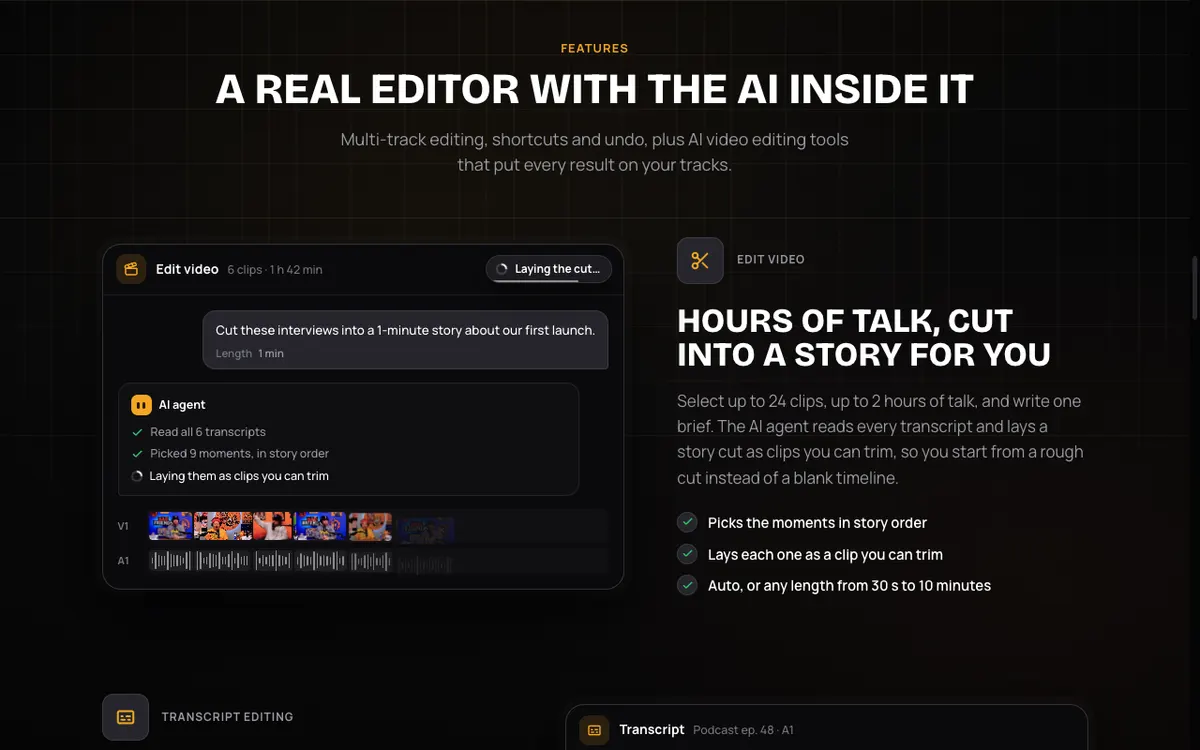 Vidwip AI Studio — delete a word from the transcript and it is cut from the video.
Vidwip AI Studio is a browser-based AI video editor with a timeline, text-based editing and an AI cut that lays out a highlight from a one-line brief. The free start is 100 credits, granted once, with no credit card.
That is the honest difference from the rest of this list. Clipchamp, Kapwing and Descript give you a plan that stays open, while Vidwip gives you a pot of credits that does not refill.
What 100 credits buys, from our published rates: an AI cut costs 5 credits plus 1 per started minute of footage, plus 1 credit per 30 seconds of transcript. A 10-minute video comes to 5 + 10 + 20 = 35 credits, so 100 covers about two of them.
AI shots need a paid plan; Kling 3.0 Standard costs 20 credits per second.
You can caption in 94 languages inside the same editor, and exports go up to 1080p at 30 fps with no watermark on any plan. The free plan runs one render at a time.
Pros
- No watermark on any plan, exports up to 1080p at 30 fps
- Delete words from the transcript to cut the picture and sound
- AI cut covers up to 2 hours of footage from one line
- Runs in the browser, projects save as you edit
Cons
- The 100 credits are a one-time grant, not a monthly allowance
- No 4K export
- AI cut works from speech, so silent footage can’t be cut this way
Best for: Creators who want a clean, watermark-free 1080p export and can live with a one-time free start.
Pricing: 100 free credits once, no credit card. Starter $25/month, Pro $99/month (see pricing).
2. CapCut
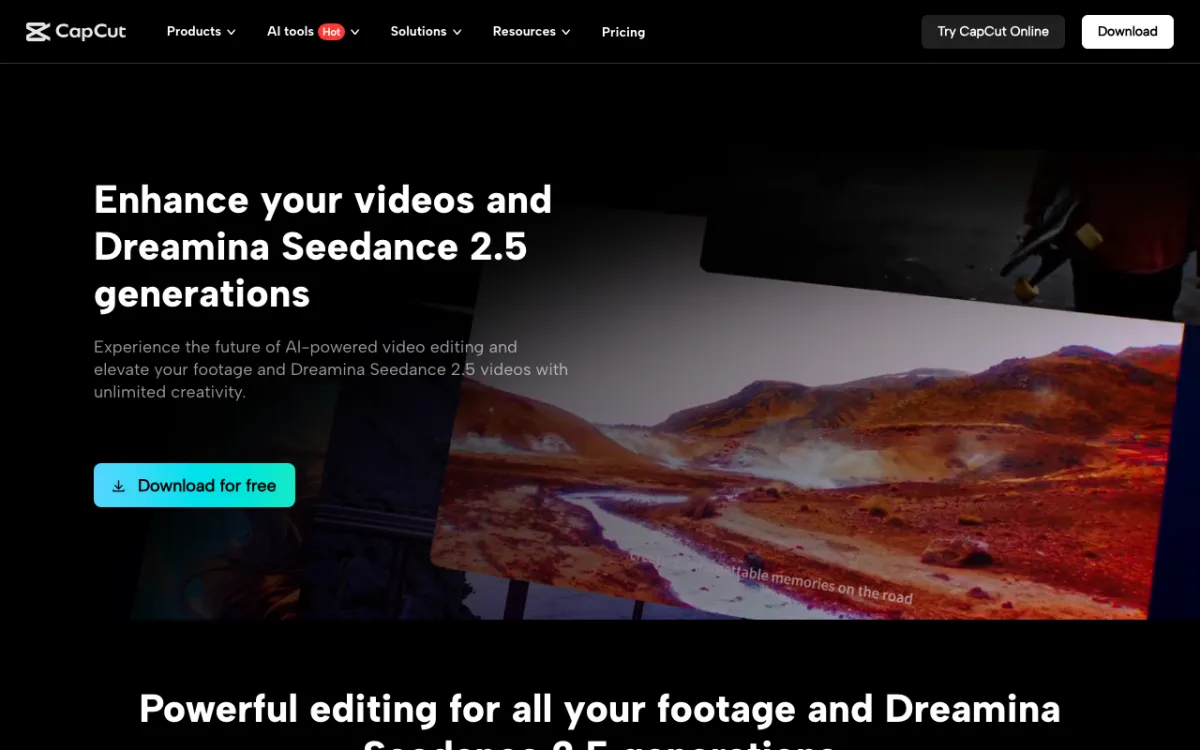 CapCut — one editor across mobile, desktop and browser, with auto captions in its tools menu.
CapCut is the most widely used free editor on this list, with auto captions, templates and AI tools on phone, desktop and the web. Its limits are the least clearly published.
CapCut’s own resource page says it “does not publish one universal free max” for export resolution. It also says watermark-free export “depends on the features you use and your app version”, and that premium assets and some templates can add a watermark or an ending logo clip.
The pricing page lists Free at $0, Pro at $14/month or $89.99/year, and Ultra at $79/month (checked November 2026). It does not say how many AI credits the free plan gets, so check the balance inside the app before you plan around it.
Pros
- Free plan with basic editing tools and templates
- Pro at $14/month is cheap next to Descript or Kapwing
- Same editor on mobile, desktop and browser
Cons
- No published free export ceiling or AI credit count
- Pro-locked templates and assets can add a watermark
- 4K and 60 fps are Pro features
Best for: Social creators who edit on a phone and want templates more than precise AI controls.
Pricing: Free. Pro $14/month or $89.99/year, Ultra $79/month (checked November 2026).
For more options, see our CapCut alternatives.
3. Clipchamp
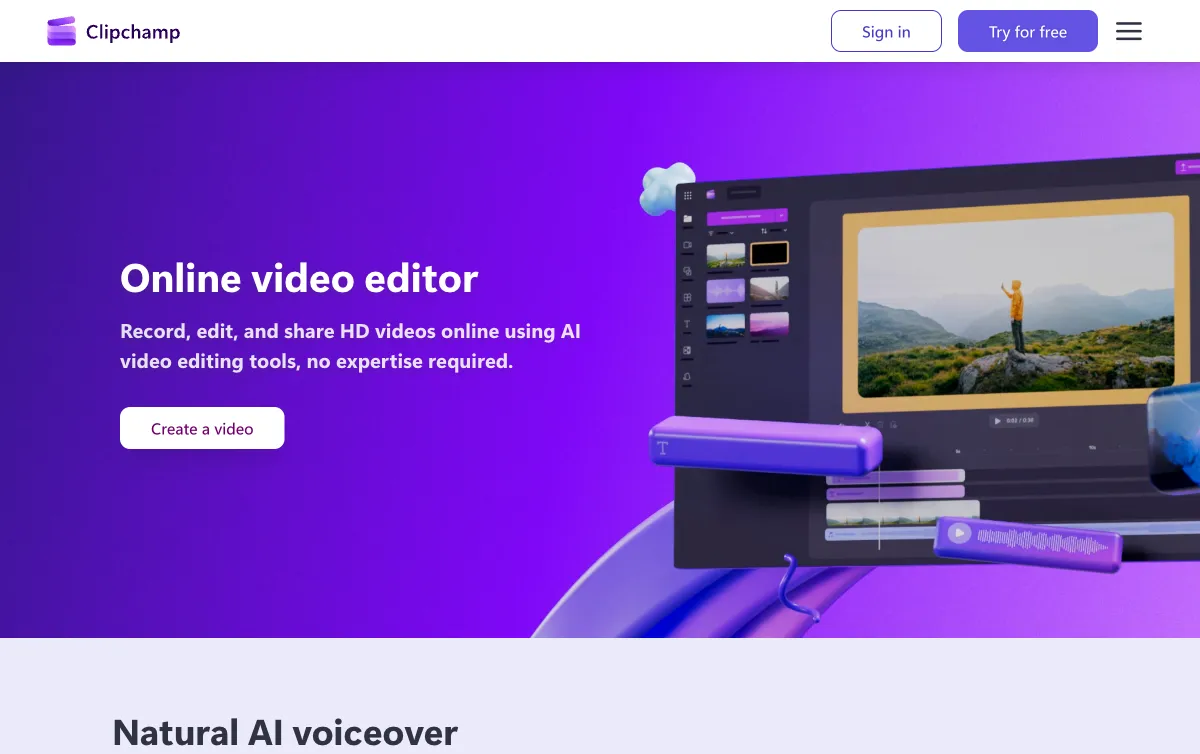 Clipchamp — Microsoft’s browser editor, with AI subtitles and silence removal on the free plan.
Clipchamp has the cleanest free tier we found: up to 1080p, no watermarks, and AI subtitles, AI voiceovers and silence removal in the free column of its comparison table (checked November 2026).
Premium raises the ceiling to 4K. The pricing page lists no dollar price and sends you to Microsoft 365 Personal and Family plans, so we cannot quote a Premium price.
It may also vary by region.
The AI on the free plan is the cleanup kind: captions, voices and silence cuts.
Pros
- 1080p export with no watermark on the free plan
- AI captions, AI voices and silence removal included
- Runs in the browser
Cons
- 4K needs Premium
- No Premium price on the page, it ties to Microsoft 365
- Premium price and AI limits are not spelled out on the page
Best for: YouTubers and small teams who want clean, free 1080p exports with auto captions.
Pricing: Free. Premium is bundled with Microsoft 365 plans, price not listed on the page (checked November 2026).
For more options, see our Clipchamp alternatives.
4. DaVinci Resolve
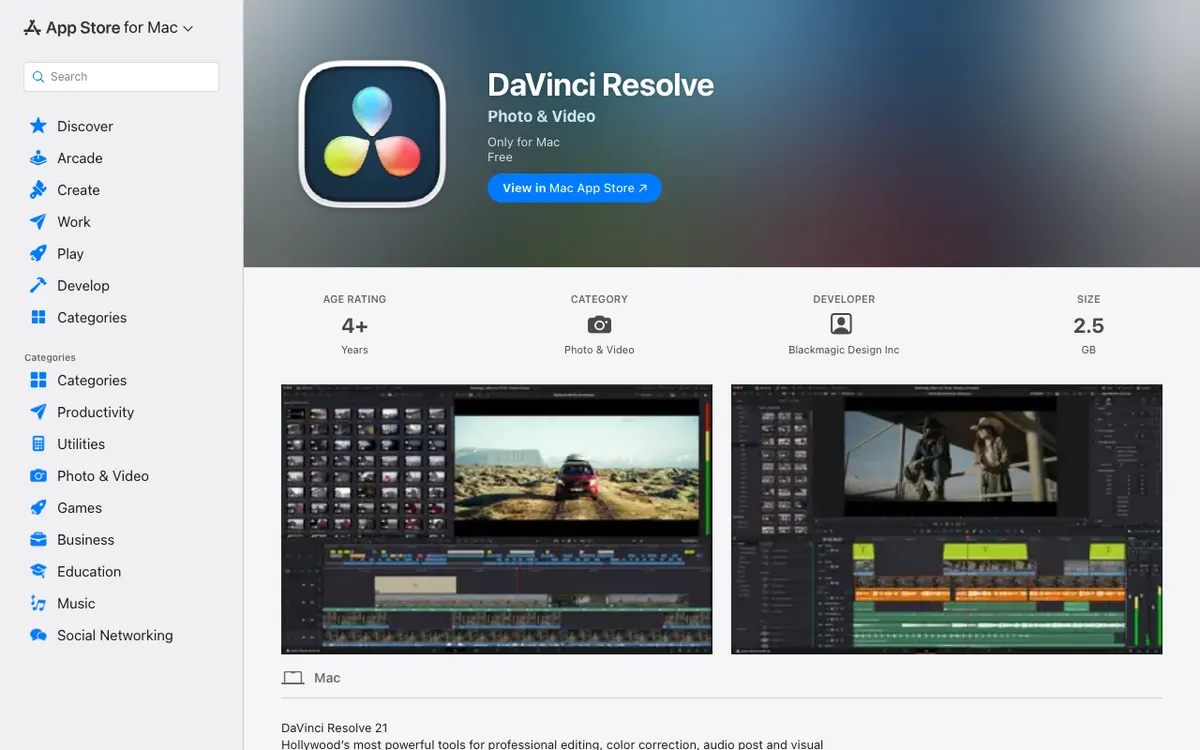 DaVinci Resolve 21 — the free version handles 8-bit video up to 60 fps and Ultra HD.
DaVinci Resolve is the most capable free editor here, but it is a desktop download with a steep learning curve, and its AI is not in the free version.
The Blackmagic page says the free version works with 8-bit video up to 60 fps and resolutions as high as 3840 x 2160. Studio costs $236 (listed down from $295, checked November 2026) and adds 10-bit up to 120 fps, the AI Neural Engine, Magic Mask and text-based editing.
So “free AI video editor” is only half true for Resolve. You get a professional editor and colour suite for nothing, and you pay to get the AI.
Pros
- Free version handles Ultra HD at up to 60 fps
- No watermark mentioned on the product page
- Studio is a one-time $236, not a subscription
Cons
- AI Neural Engine, Magic Mask and text-based editing are Studio-only
- Free version is limited to 8-bit video
- Desktop install and a real learning curve
Best for: Editors who want a full timeline and colour grading and will cut manually.
Pricing: Free. Studio $236 one-time (checked November 2026).
5. Descript
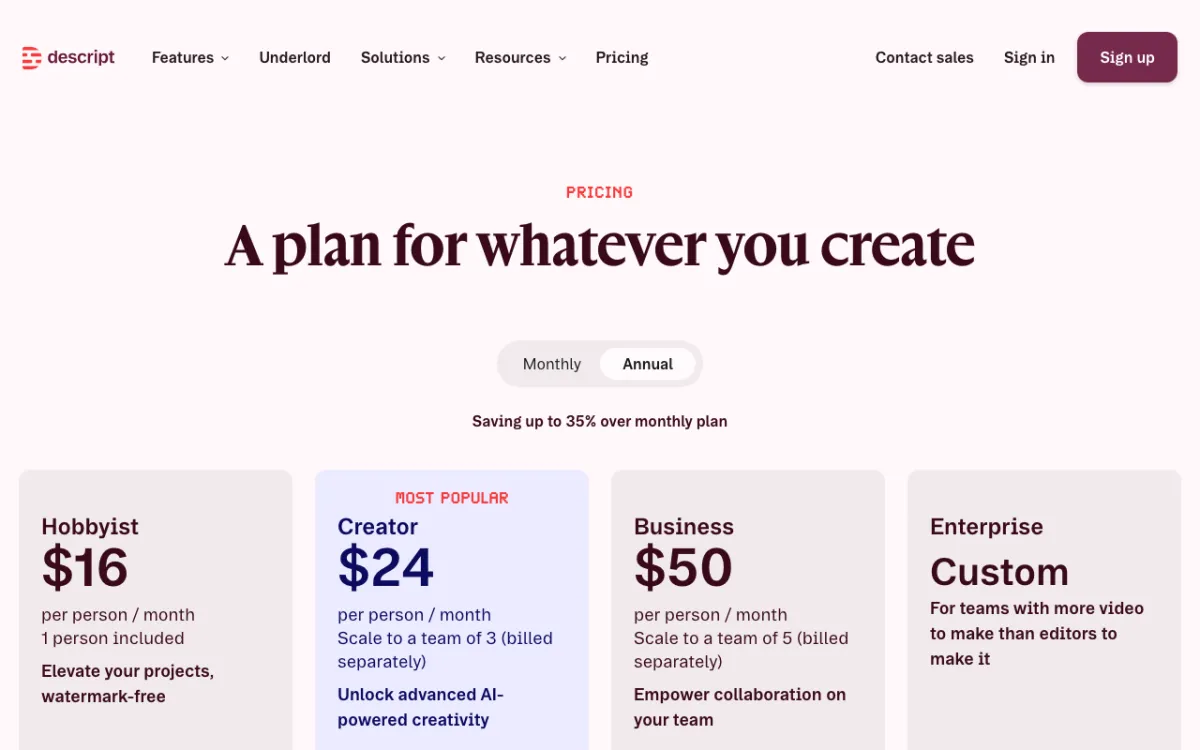 Descript — transcript editing with a free plan capped at 720p and watermarked exports.
Descript edits video as a text document, and it is generous with captions but strict with exports. Its free plan has 60 media minutes and 100 AI credits, granted once.
Local export is 720p, and the pricing table marks watermark-free export as not included. Dynamic captions are listed as unlimited on Free, while Underlord, filler-word removal, Studio Sound and Eye Contact are all marked “Limited” without a number (checked November 2026).
Paid plans list two prices per person per month: Hobbyist $16 and $24, Creator $24 and $35, Business $50 and $65. The page does not label which is monthly, though its “saving up to 35%” note points to the lower figure being annual.
Pros
- Unlimited dynamic captions on the free plan
- Edit by deleting words in the transcript
- 25 transcription languages listed
Cons
- 720p and watermarked on Free
- 100 AI credits are a one-time grant
- Other AI features are “Limited” with no number
Best for: Podcasters and interview editors who want transcript editing and are happy to upgrade for clean exports.
Pricing: Free. Hobbyist from $16/month (checked November 2026).
See our full Descript alternatives.
6. Kapwing
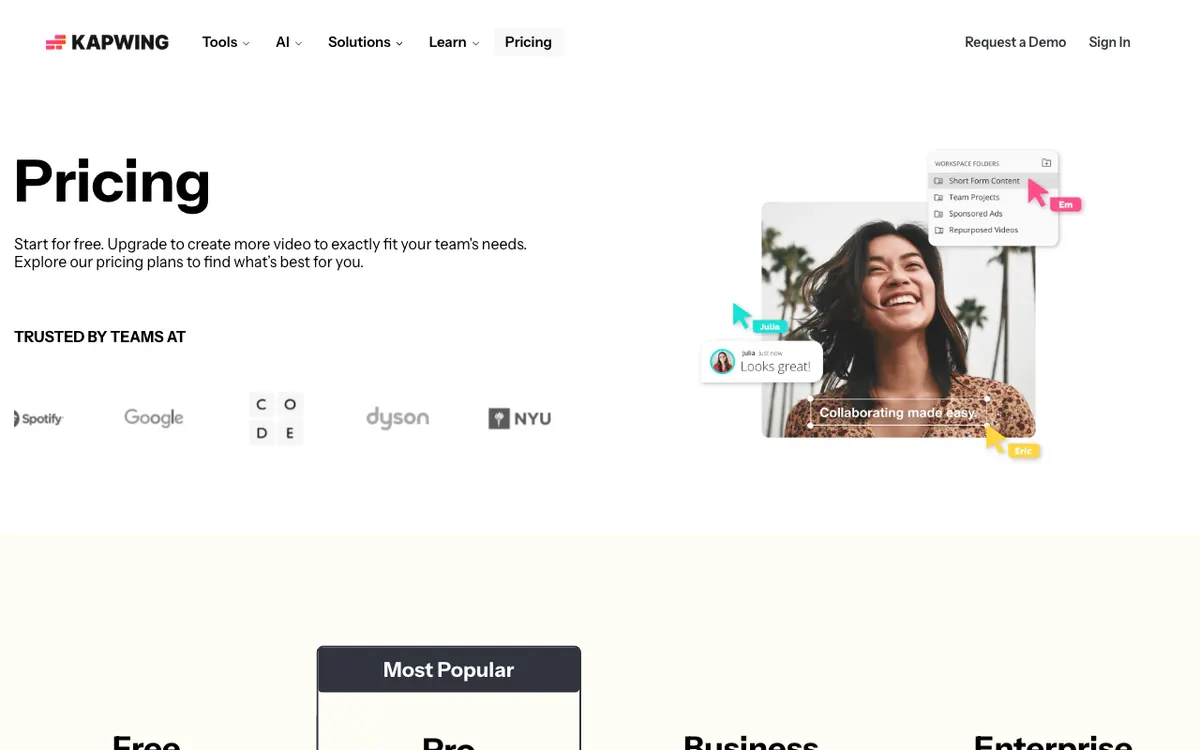 Kapwing — free exports are 720p, watermarked and capped at four minutes.
Kapwing is a browser editor with the tightest free limits in this group. The pricing page promises “unlimited exports with a watermark” at 720p, videos up to 4 minutes long, 10 AI credits and auto-subtitling up to 10 minutes.
The 10 credits cover auto-subtitling and text to speech. Pro is listed at $16 with 1,000 credits per month and Business at $50 with 4,000 (checked November 2026), though the text we read did not say which billing period those figures reflect.
It is fine for a quick social cut. It is not fine for a ten-minute YouTube video.
Pros
- Easy browser editor, no install
- Unlimited free exports
- Credits cover auto-subtitles and text to speech
Cons
- Watermark and 720p on Free
- Four-minute export cap
- Only 10 AI credits
Best for: Short social clips where a watermark does not matter.
Pricing: Free. Pro $16 with 1,000 credits per month (checked November 2026).
See our Kapwing alternatives.
7. VEED
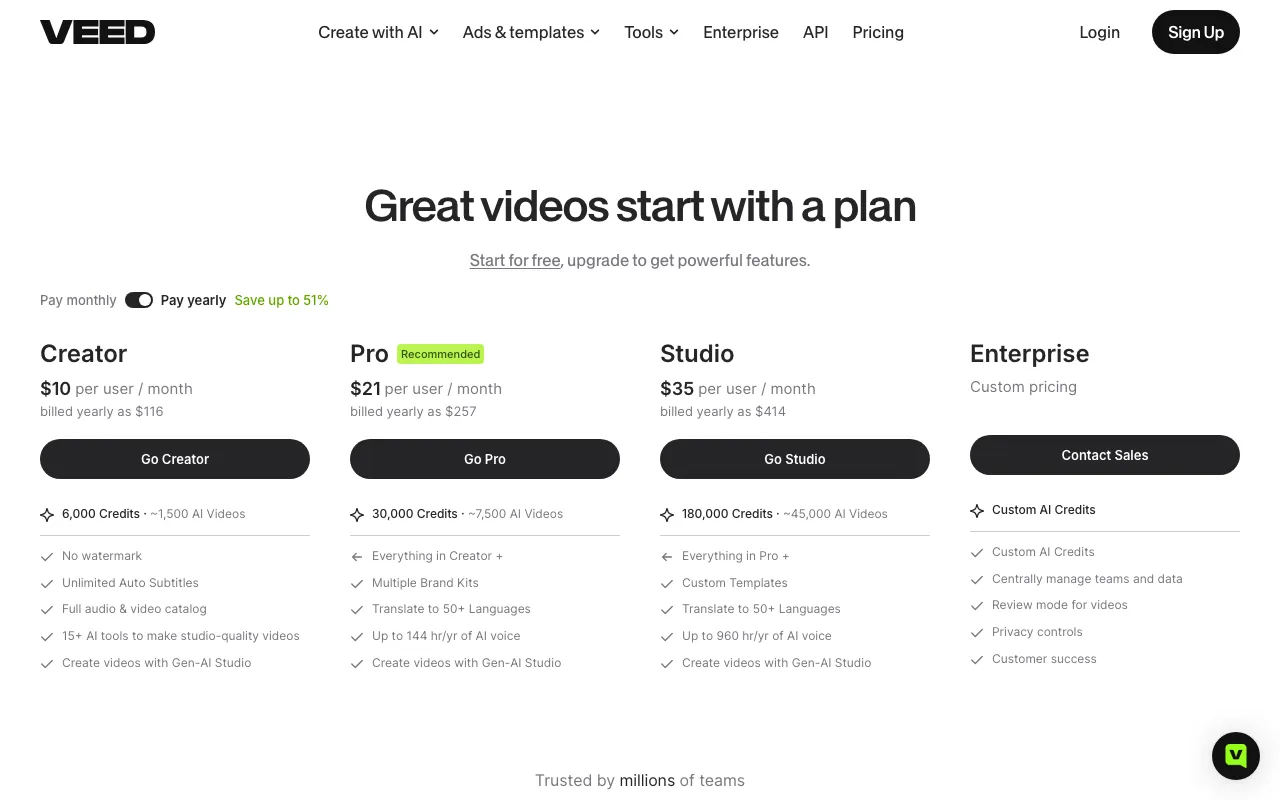 VEED — a browser editor where free exports carry a watermark.
VEED is a browser editor with subtitles, text-based editing and AI Auto Edits. VEED’s editor page says free exports include a watermark and are limited to 720p.
On the free plan you get “one-time trials” of AI tools such as Auto Edits, which can add subtitles. Paid plans include subtitles under a 50 hours per month fair-use limit.
The free export length is not stated on the pages we could read.
We could not read VEED’s plan prices from its pricing page, and third-party sites disagreed on them, so we do not quote one. Check the live page before you decide.
Pros
- Subtitles and text-based editing in the browser
- Paid plans include subtitles up to a 50-hour fair-use cap
- Free trial of AI tools
Cons
- Watermark and 720p on Free
- AI tools are one-time trials, not an allowance
- Free export length and paid prices not readable on the pages we checked
Best for: Creators who need subtitles and are willing to pay to remove the watermark.
Pricing: Free. Paid prices not verified (checked November 2026).
See our VEED alternatives.
8. Gling
 Gling — removes silences and bad takes from talking-head footage.
Gling removes silences, filler words and bad takes from talking-head footage. The free plan gives 1 hour of AI-edited media per month with unlimited MP4 or MP3 export, and exports carry a watermark.
Paid plans are Plus (10 hours, $20 monthly or $10 per month billed annually), Pro (30 hours, $40 or $20) and Elite (100 hours, $100 or $50), all without a watermark (checked November 2026). Gling is narrow, so it pairs with another editor rather than replacing one.
Pros
- 1 hour a month of AI editing on the free plan
- Unlimited exports
- Annual billing halves the monthly price
Cons
- Watermark on every free export
- Narrow tool for talking footage, not a general editor
- Premium support starts at Pro
Best for: YouTubers who record long talking takes and want a quick AI rough cut.
Pricing: Free. Plus $20/month or $10/month annual (checked November 2026).
9. Adobe Express
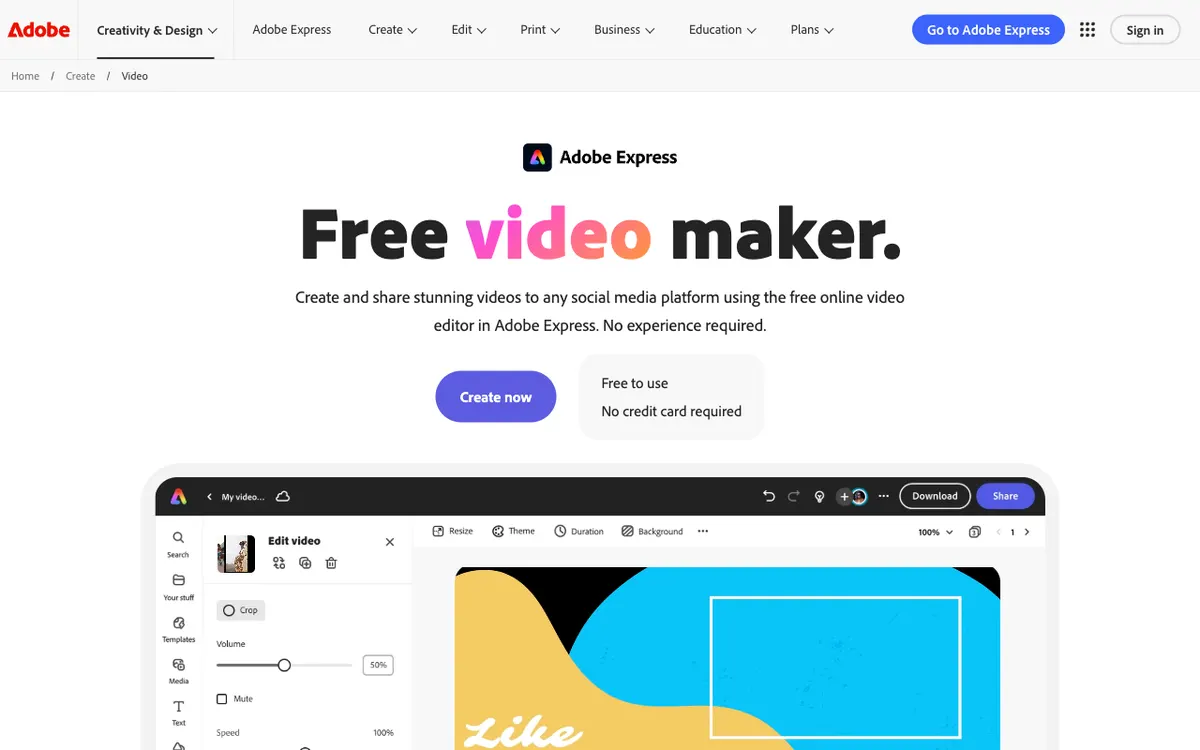 Adobe Express — free video up to 30 minutes, with limited generative AI credits.
Adobe Express is a template-driven design and video app. Free allows video up to 30 minutes, and Premium at US$9.99/month raises that to 2 hours (checked November 2026).
Free includes “limited generative AI credits” and some free daily generations. Premium lists 250 generative credits per month.
The pricing page does not state free export resolution or watermark rules, so we cannot say either.
Pros
- Free video up to 30 minutes
- Premium is $9.99/month with no annual commitment
- Templates and design tools in the same app
Cons
- Free AI credits are “limited” with no number
- Export resolution and watermark not stated on the pricing page
- Lighter editing than Clipchamp or DaVinci Resolve
Best for: Social posts and branded clips built from templates.
Pricing: Free. Premium US$9.99/month (checked November 2026).
AI video editors free to start, compared side by side
| Tool | Free export | Watermark on free | AI on the free tier | Paid from |
|---|---|---|---|---|
| Vidwip AI Studio | 1080p, 30 fps | No | 100 credits, granted once | $25/mo |
| CapCut | Not published | Depends on assets | Not published | $14/mo |
| Clipchamp | Up to 1080p | No | AI subtitles, voices, silence removal | Not listed |
| DaVinci Resolve | Up to 3840 x 2160, 8-bit | Not stated | None (Studio only) | $236 one-time |
| Descript | 720p | Yes | 100 AI credits once, captions unlimited | $16/mo |
| Kapwing | 720p, 4 min max | Yes | 10 credits, 10 min of subtitles | $16 |
| VEED | 720p | Yes | One-time trials | Not verified |
| Gling | MP4 | Yes | 1 hour a month | $20/mo ($10 annual) |
| Adobe Express | Not stated | Not stated | Limited credits | $9.99/mo |
How to choose
- Need clean 1080p with no budget? Clipchamp, then DaVinci Resolve.
- Need AI cuts without a watermark? Vidwip, knowing the free grant runs out. Resolve Studio costs $236 once.
- Need captions only? Descript’s unlimited free captions are fine if you accept 720p and a watermark.
- Posting short clips? Kapwing or CapCut will do.
- Comparing paid tools? Read our best AI video editors guide, or see free AI reel makers for shorts.
Final verdict
Clipchamp has the best free limits on this list, DaVinci Resolve has the best free editor, and Descript has the best free captions. Vidwip AI Studio has the cleanest export, but its free start is a single 100-credit grant.
Whichever you pick, read the watermark and resolution line first. It is the limit most likely to waste an afternoon.